Invite the Bot
The CoGM bot runs your slash commands, posts signups and reminders, sends direct messages, and tracks voice for attendance. Add it once per Discord server.
The easiest way is the Discord step when you create your community: pick your server and the bot joins. If you skipped it, or you want to add the bot again, use the button below or the community's Discord settings. You need the Manage Server permission on that Discord server.
Check that it is connected
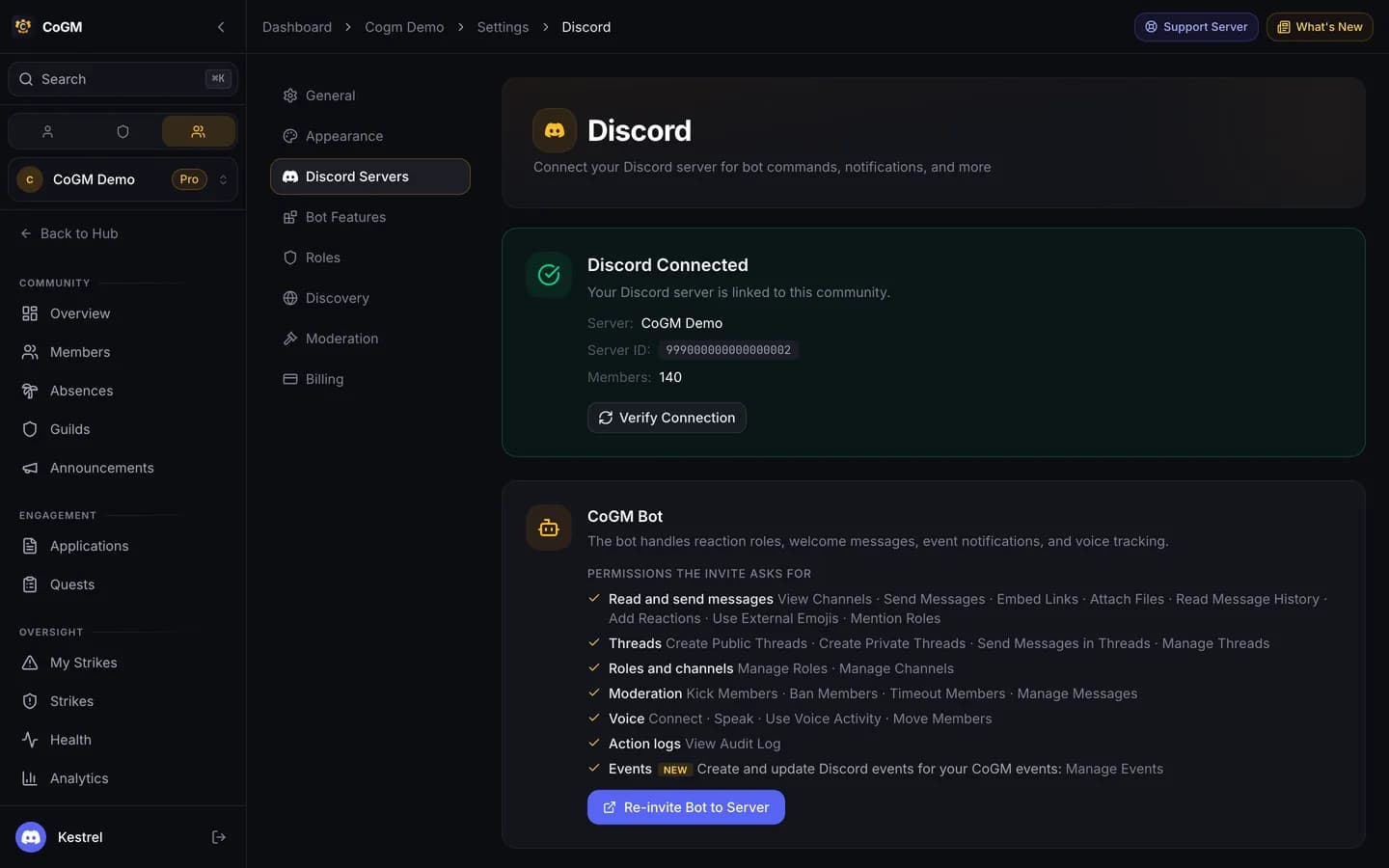
Open your community, then Settings > Discord Servers. The page shows the linked server and its member count. Press Verify Connection if you are not sure the bot is in. Re-invite Bot to Server opens the same invite again.
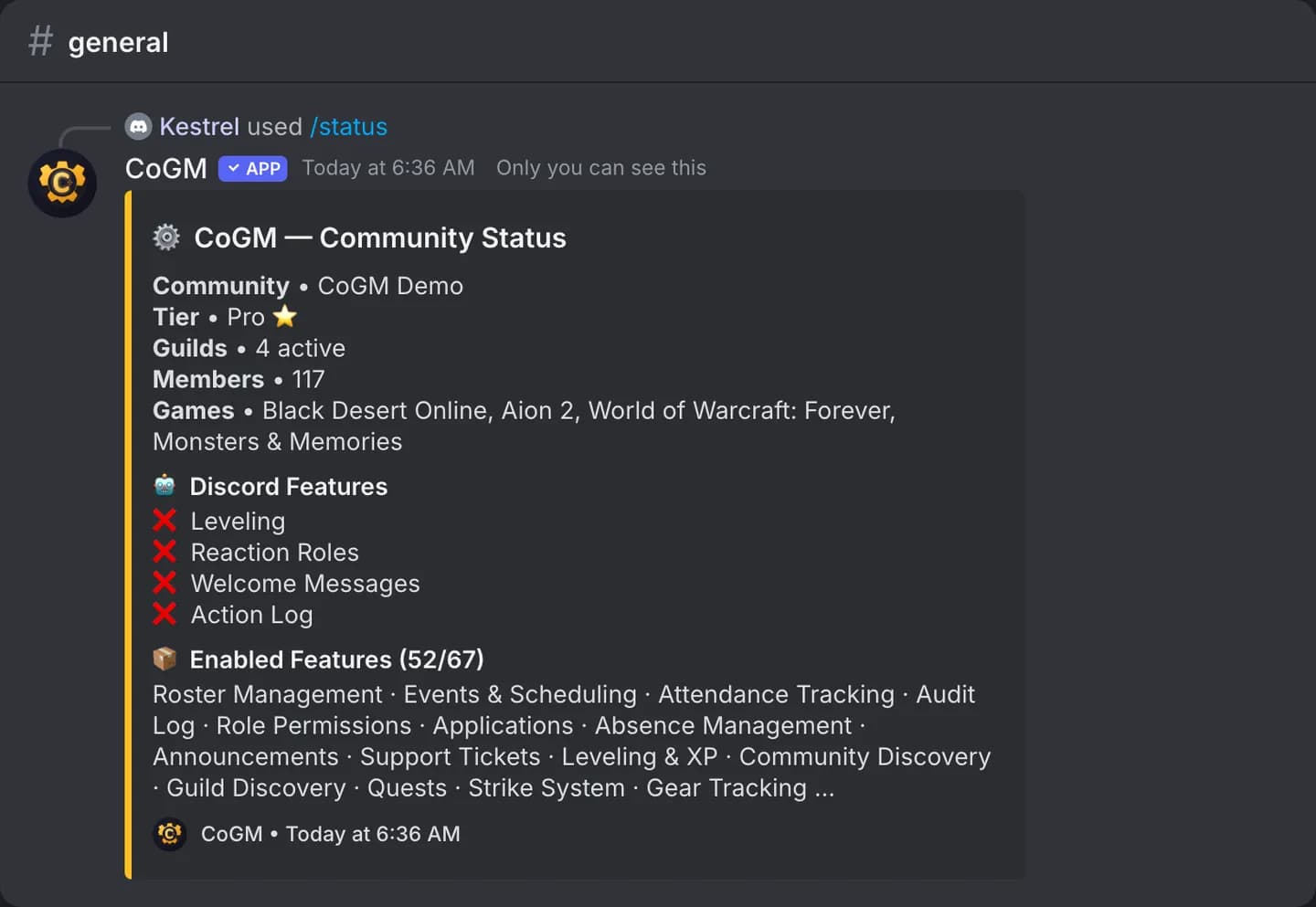
In Discord, run /status. It replies, only to you, with your community, plan, guilds, games and the features that are on.
Permissions the invite asks for
The invite asks for these permissions, not Administrator. Leave the boxes checked so every feature works.
Read and send messages
Post embeds, confirmations, announcements, and event updates
View Channels · Send Messages · Embed Links · Attach Files · Read Message History · Add Reactions · Use External Emojis · Mention Roles
Threads
Run ticket and application-review threads
Create Public Threads · Create Private Threads · Send Messages in Threads · Manage Threads
Roles and channels
Reaction roles, level and birthday rewards, LFG and war-room channels
Manage Roles · Manage Channels
Moderation
Auto-mod, gate-keeper, and strikes (kick, ban, timeout, clean spam)
Kick Members · Ban Members · Timeout Members · Manage Messages
Voice
Music, shotcaller relay, and voice attendance tracking
Connect · Speak · Use Voice Activity · Move Members
Action logs
Attribute who did what in your server audit log
View Audit Log
Events
Create and update Discord events for your CoGM events
Manage Events · Create Events
Two things to do after the invite
Discord does not set these for you. Skipping them is the most common reason role rewards or channel posts fail after a good invite.
Move the CoGM role up
Open Server Settings > Roles in Discord and drag the CoGM role above every role you want it to give or take away: reaction roles, and level and birthday rewards. A bot can only manage roles below its own.
Give it access to your channels
The bot only sees and posts in channels its role can view. Add the CoGM role to your signup, upload, LFG and log channels, and to any private officer channels where you want it to post.
Slash commands
/ in any channel to see its commands. Which ones you see depends on your games, your plan and the features you turn on. /help lists the commands for your server.Link more Discord servers
A community can link 1 Discord server on Free and up to 5 once any of its guilds is on Pro. To add one:
Invite the bot to the other server
Use the button at the top of this page and pick the other server.
Get a /link code
In Settings > Discord Servers, press Link Another Server. CoGM shows a code that works once, for 24 hours.
Run /link in that server
A server admin or a mod with Manage Server runs /link with the code. /unlink disconnects a server again. Your data on CoGM stays.
If Discord says you cannot add the bot
You need the Manage Server permission on that Discord server. Ask the owner or an admin to open the invite, or send them the link from the Discord step of the community wizard. Adding the bot again never adds a second copy. To link the server without managing it, open Settings > Discord Servers, press Get a /link code and send them the code. A server admin or a mod with Manage Server runs /link with it in the server.
Setup tips from the bot
If you stop partway through setting up a new community, the bot sends you a short tip by Discord DM:
- No server linked yet: one tip an hour after you created the community, with a button to open Discord settings.
- CoGM is not in your linked server yet: one tip an hour after you created the community, and another after a day. Each has a button to add CoGM.
- CoGM is in, but nobody has posted an event: one tip a day after the bot joined, with a button to create an event.
- A note when a member signs up for an event for the first time.
A tip is only sent if that step is still not done when it is due. You get at most three, plus the one reminder to link a server, and none after the community is 14 days old. Press Stop these tips under any tip to turn them off for every community you own. The bot can only DM you if you share a server with it and your DMs are open.
Next
Get your members in, or browse the command list.