Node War Prep
A node war night from start to finish: check who is ready, post the signup, build platoons, take attendance, and upload the log.
Before your first war, finish the BDO setup: the member role, siege roles and a minimum gear score. If you want kill maps, set up the CoGM Logger too.
Before the war
Check gear
Open Members > Roster. Sort by gear score and look at who is under your target and whose gear is out of date. Remind the people behind from the same page. See Gear Tracking Setup.
Check class makeup
The Statistics page shows your class composition as a wheel, so you can spot gaps before you plan platoons.
Post the node war
Go to Activities > Events and create an event from your Node War template. Set the time, keep signups on, turn on role slots for your siege roles, and pick the Discord channel. The bot posts the signup there and sends reminders before the start.
Watch signups come in
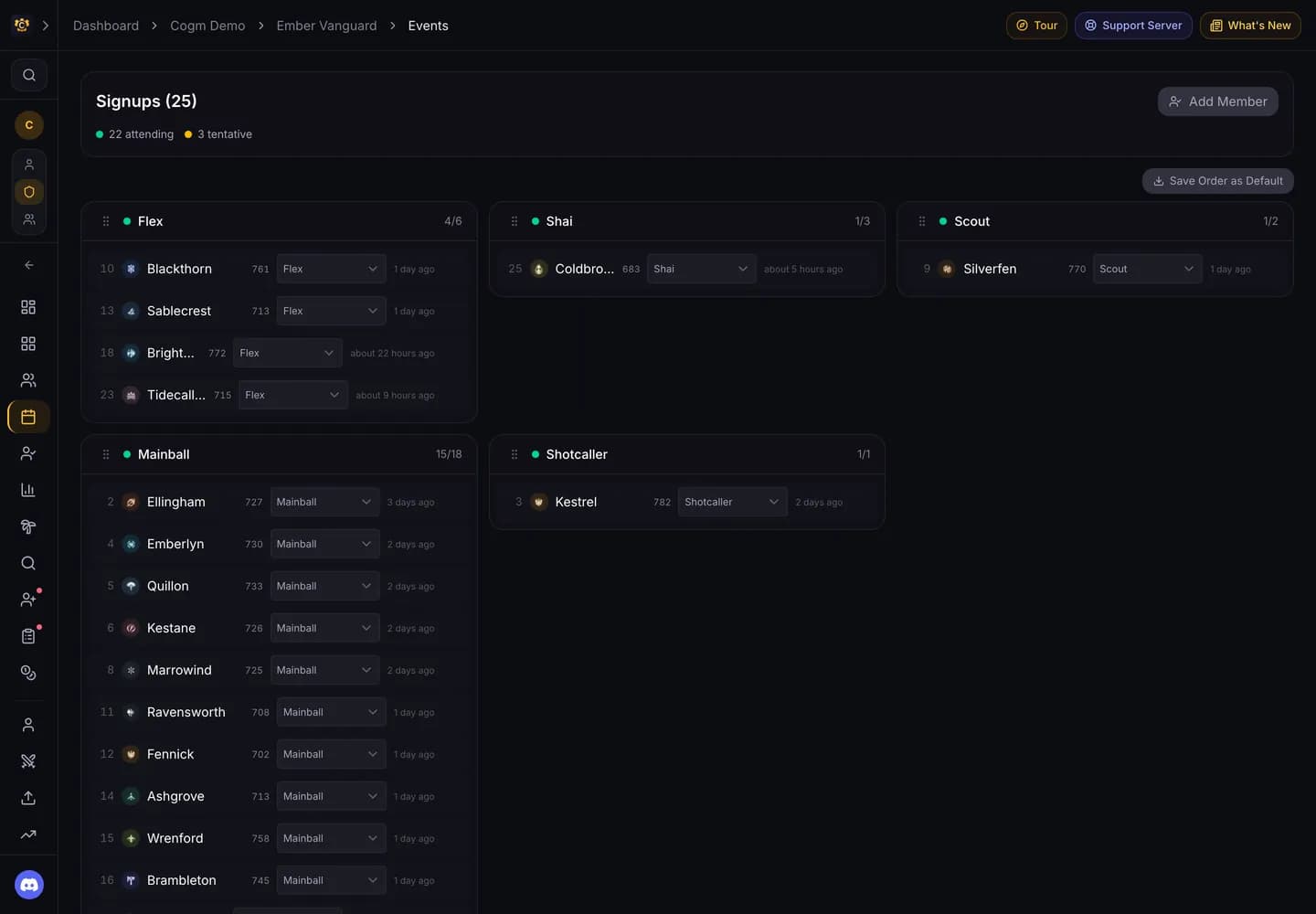
Members sign up from the post in Discord or on the event page. The event page groups signups by role and shows the class composition of who is coming.
Build the platoons
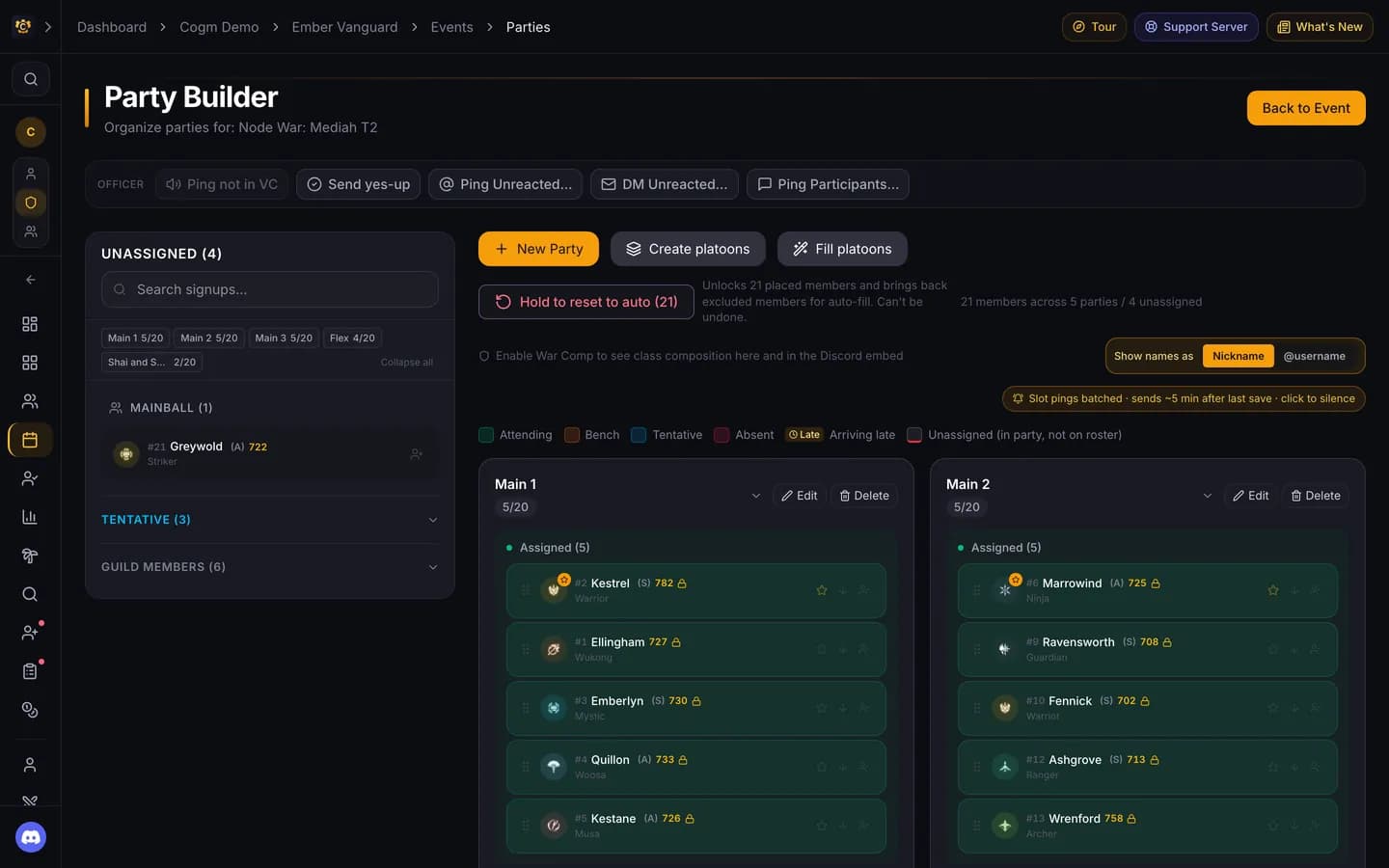
Open the event's parties to use the party builder. Drag signups into platoons, or load a saved loadout. When you save, the bot posts the platoons to Discord and pings the people you placed. The party builder and loadouts are on Pro.
On Pro you can also draw the plan on the node map with War Planning and show it to members, and share out bench turns with Rotations.
During and after the war
Take attendance
Turn on voice tracking on the event page, or have an officer in the war's voice channel run /attendance. You can also mark members present by hand or import them from the signups. See Attendance.
Upload the war log
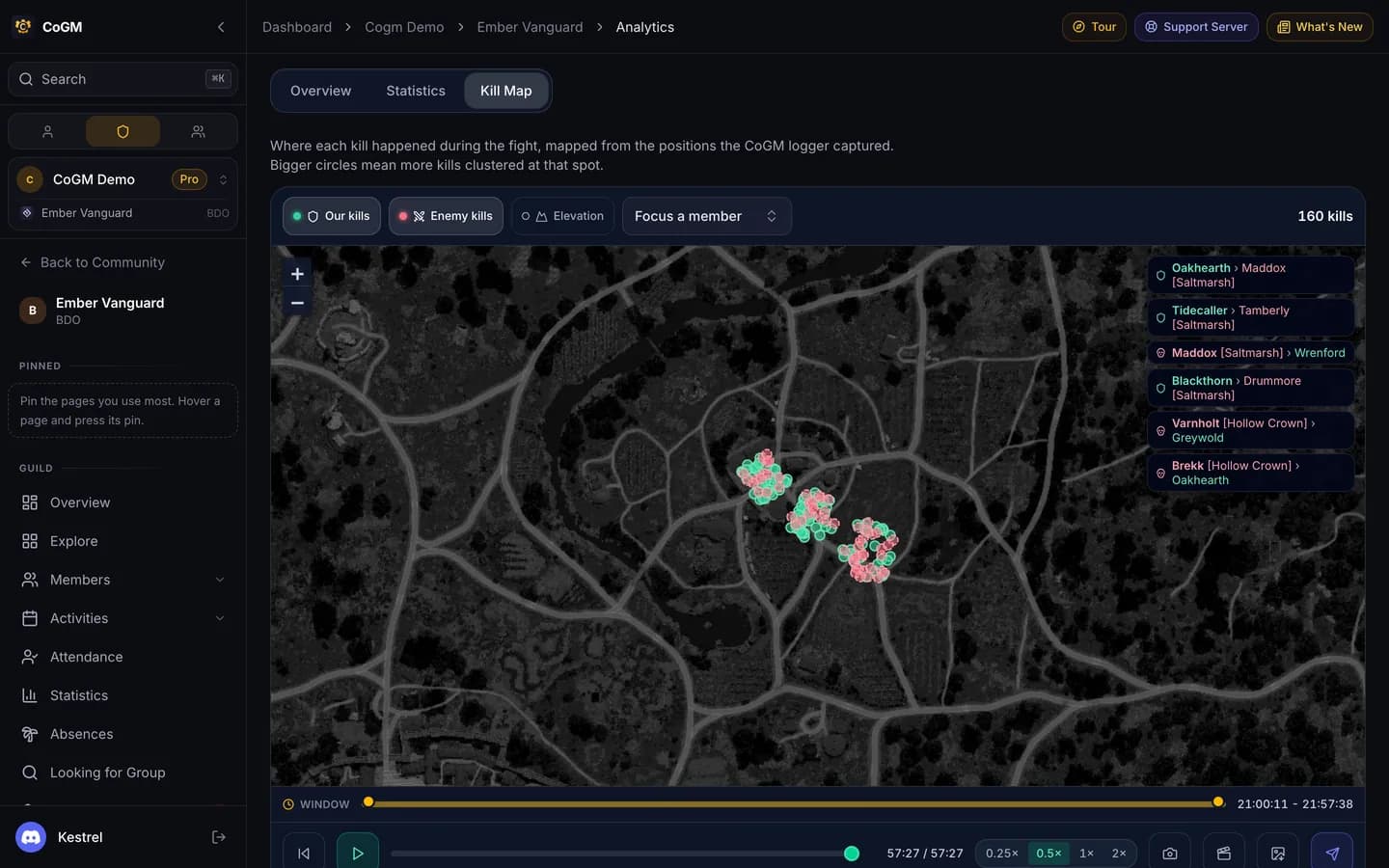
Run the CoGM Logger during the war and upload when it ends. The war gets a recap with each member's kills and deaths, a kill map, and a place on the guild leaderboard. See Upload a war log.