BDO Setup Guide
A new Black Desert Online guild opens on its setup page. Four rows must be done before Finish setup: region and guild, the member role, siege roles, and a minimum gear score. The member role only counts once a Discord server is linked. A fifth, Record your first node war, ticks itself after your first war. The other nine wait under More options.
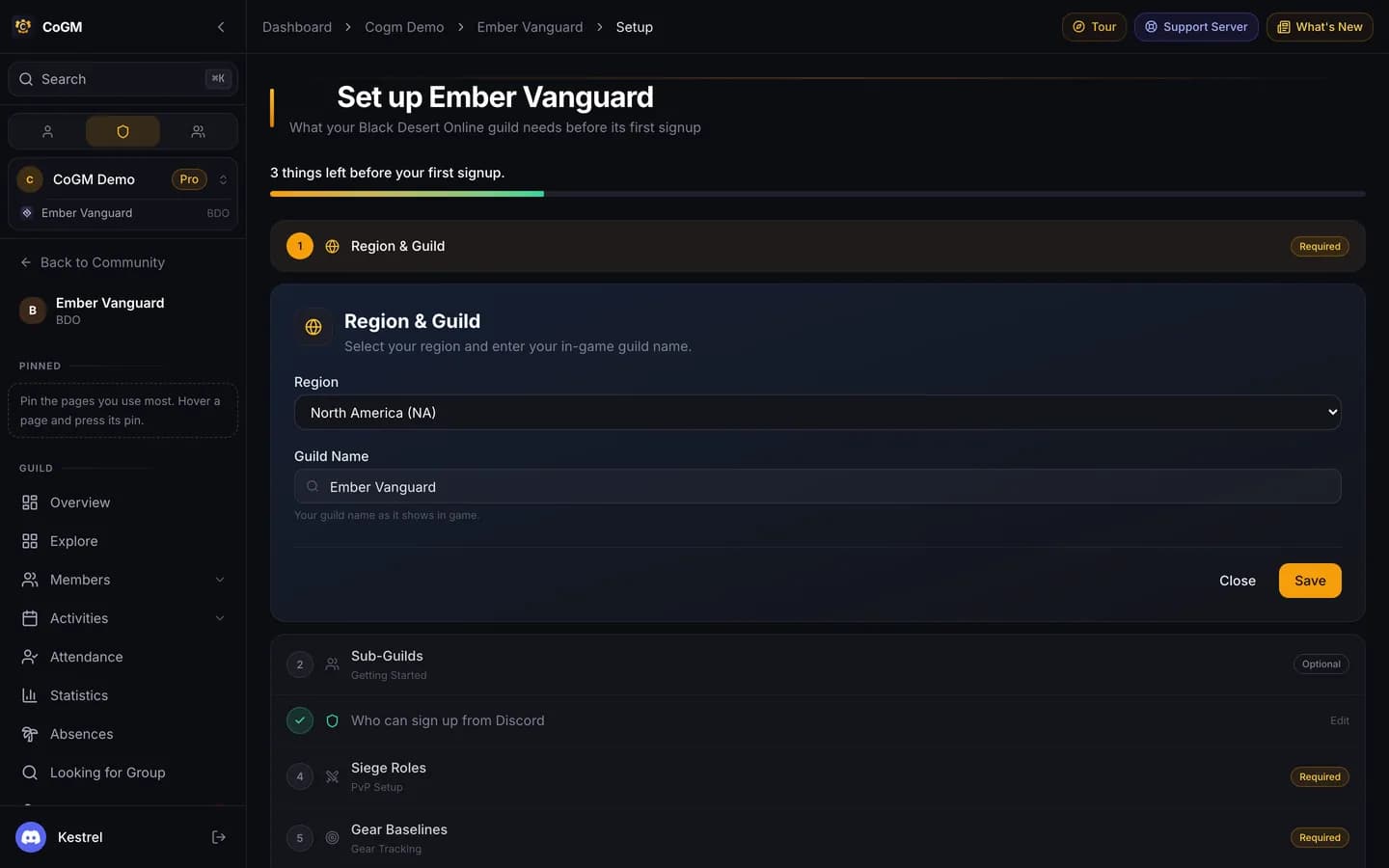
Only the community owner and community admins can open the setup page. The header counts the required rows left before your first signup. Press Finish setup once they are done, or I'll finish later to leave. Until you finish, the guild overview's Needs you list shows Finish setup with the same count, above Record your first node war. A new Black Desert Online guild already has the Node War, Siege and Guild vs Guild event templates.
Required
Region and guild
Pick NA, EU, SA or SEA and type your guild name as it shows in game. Family names are unique per region, so the region keeps lookups, roster sync and PvP results apart from other regions. If you picked these when you created the guild, the row is already done.
Who can sign up from Discord
Pick the Discord role your members have, or press Use @Role on the role CoGM suggests. Anyone with it can sign up from Discord and is added to the roster. You can also pick an officer role here. If you use sub-guilds, you can map a Discord role to each one.
Siege roles
The roles your guild uses on node war and siege nights. It starts with Mainball, Flex, Scout, Shai, Cannon Team, Elephant Rider, Defense and Shotcaller. Remove the ones you do not use and add your own.
Gear baselines
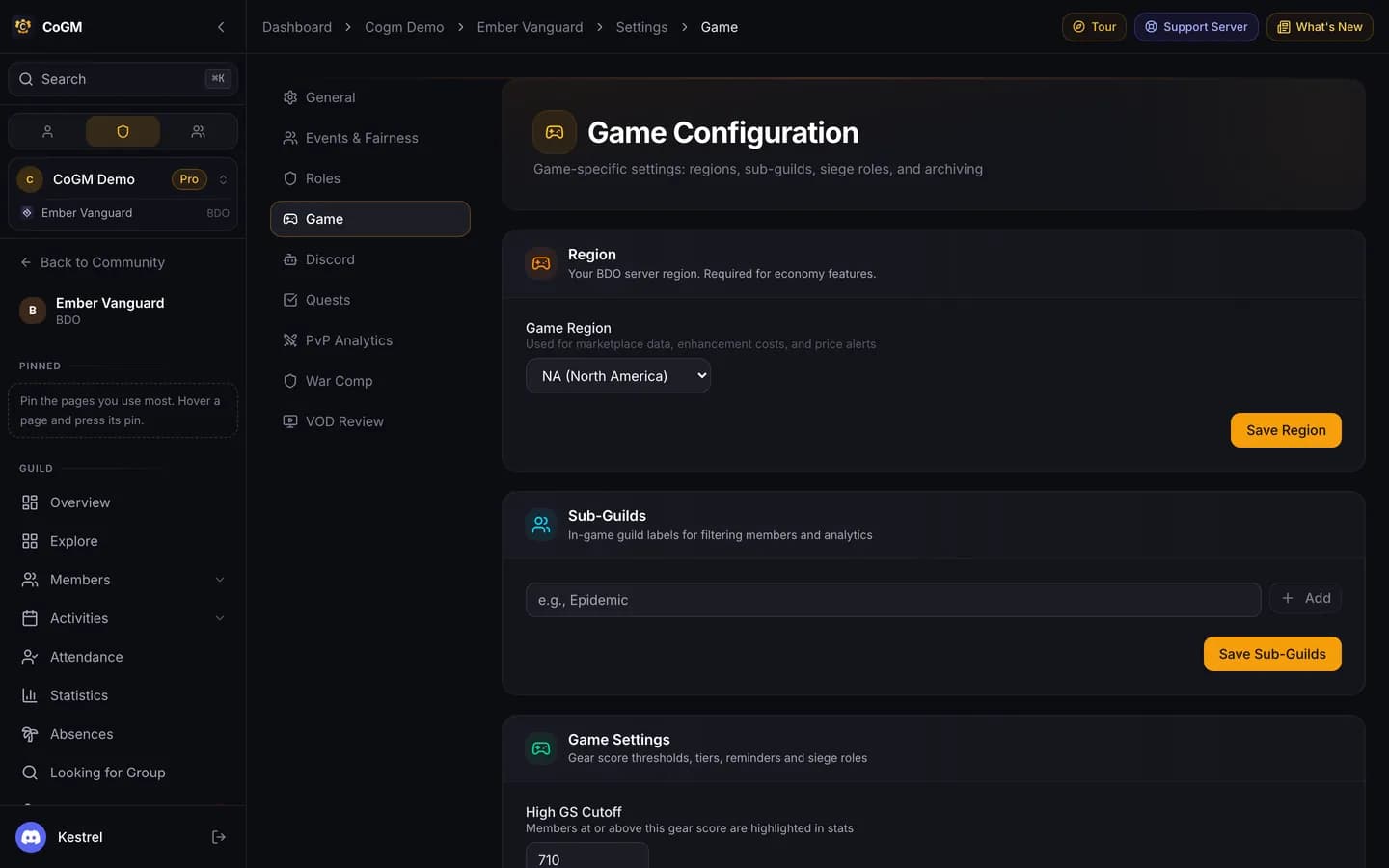
Your minimum gear score. It starts at 710. The roster colors each member by how close they are to it.
Your first node war
Record your first node war (CoGM Logger, Windows)
This row sits with the four above and counts in the progress bar, but it never holds up Finish setup. It shows Done when a war lands and ticks itself once your first war is on CoGM.
Open it to download the CoGM Logger desktop app and make your guild's upload token. Do this before your first node war if you want kill maps. Full steps: CoGM Logger.
Optional
These rows are under More options on the setup page.
Sub-guilds
Labels for each in-game guild, if you run more than one under this CoGM guild. Pick No sub-guilds if you do not.
Only the names on this list count as sub-guilds, matched in any letter case. Removing a name also removes its Discord role link, and the name stops showing on cards and the roster.
Alliances
Pull your region's alliance tier list from GuildYapper and pick your alliance, or set alliances up by hand.
Attendance
Your node war days, voice tracking, and the default name for new events.
Notifications
Discord channels for the action log, roster activity, and new applications. Saving these needs the community's bot settings permission.
Payouts
Payout tiers worked out from each member's activity. You can skip this and set it up later. See Payouts.
Applications
Create a recruitment form with your own questions. Applications are free on every plan.
VOD Review
A place for members to post gameplay videos for review. See VOD Review.
Footer on bot posts
The small line of text at the bottom of every CoGM post in your Discord.
Welcome message
Write a welcome post and have the bot post it to a channel, or copy it and post it yourself.
After setup
Fine-tune gear in the guild's Settings > Game. Gear tiers sort members into bands on the roster chart, and automatic reminders message members whose gear is out of date.
- Ask members to run /upload with their gear window. See Gear Tracking Setup.
- Plan your first war with the Node War Prep guide.
- Everything CoGM does for Black Desert Online: Black Desert Online.
- Coming from GuildYapper or Ikusa? You can keep using them: CoGM reads GuildYapper war files and old Ikusa logs. See the CoGM Logger.