Free
Permissions
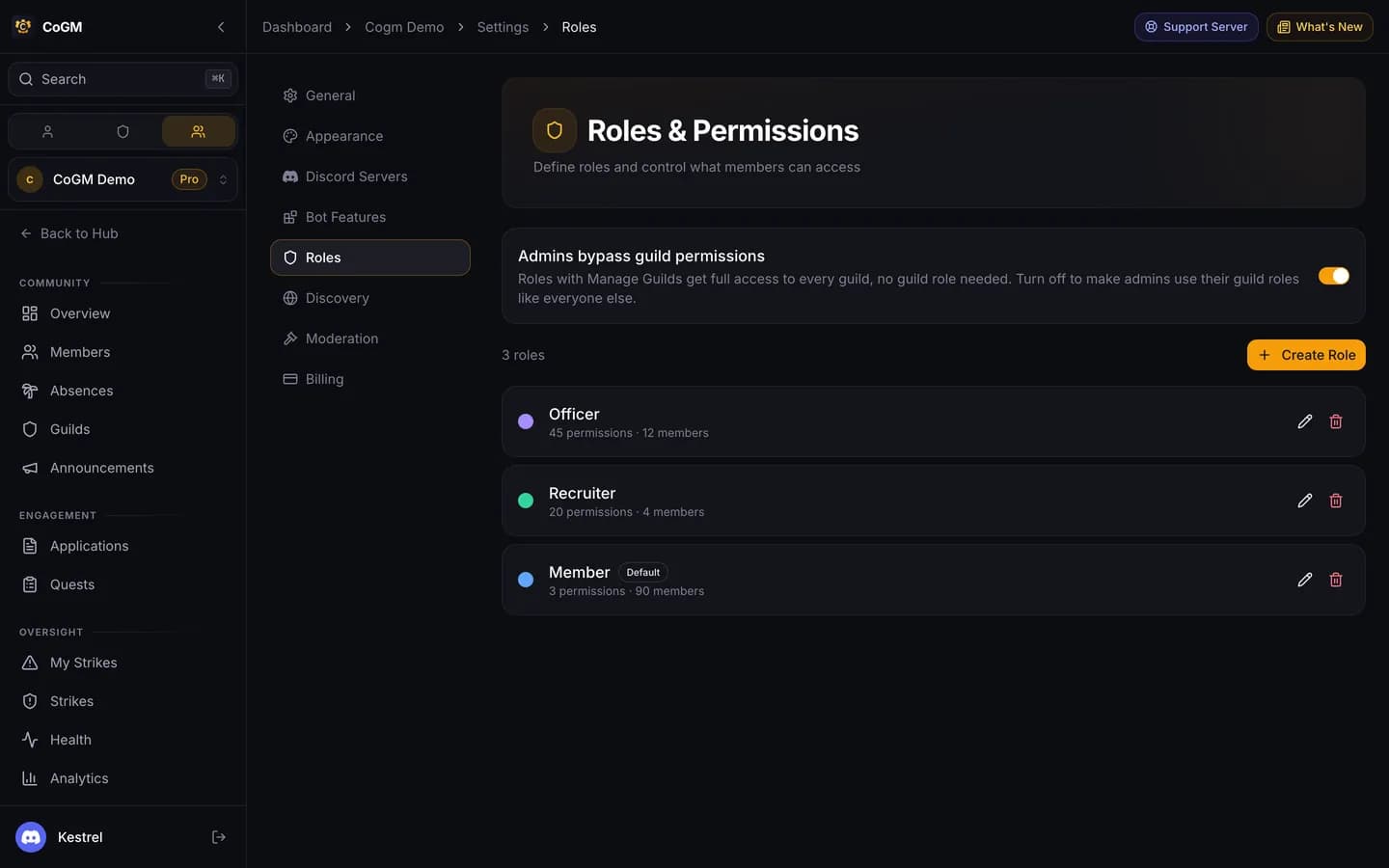
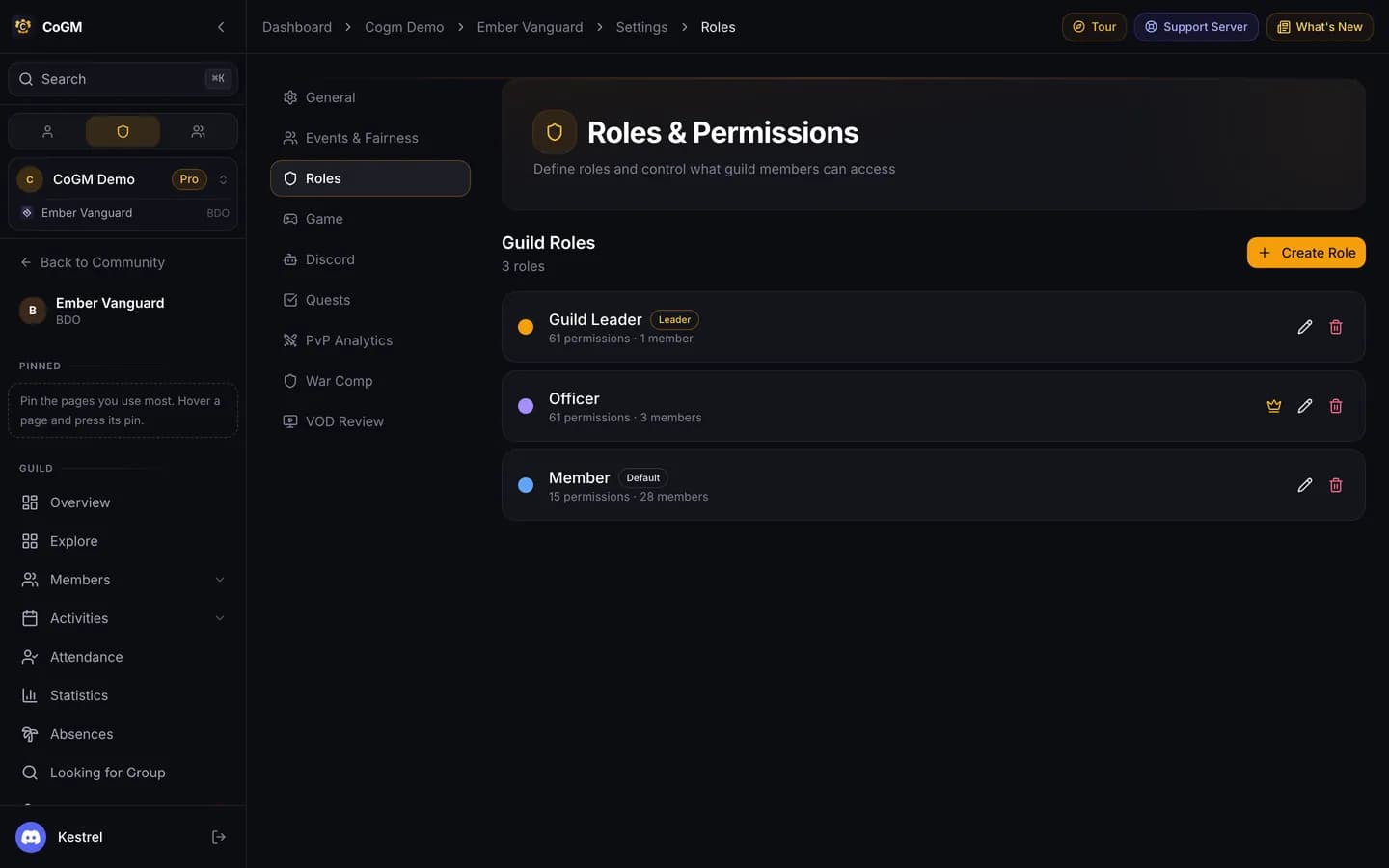
CoGM has two layers of roles. Community roles cover the whole community: settings, billing, applications, announcements. Guild roles cover one guild: its roster, events, DKP, bank and gear.
The roles you start with
- Community owner: the person who created the community. The owner can always do everything, whatever their roles say.
- Admin (community): every community permission. The owner holds it from the start.
- Member (community): the default for everyone. View Members, View Absences and View Analytics.
- Guild Leader (guild): every guild permission. Whoever creates the guild holds it.
- Member (guild): the default for everyone on the roster. Viewing the roster, gear, DKP, bank, wishlists, economy, class composition, clips, VOD reviews, your own PvP, the leaderboard, benchmarks and Guild League, plus Upload Gear and Submit Clips.
You can rename these, change what they grant, and add your own roles, such as Officer or Recruiter.
Add an officer role to a guild
1
Open the guild's roles
In the guild, open Members, then Manage Roles. Or open the guild's Settings, then Roles.
2
Create the role
Name it, pick a color, and tick the permissions it grants.
3
Give it to people
Assign the role to members. To keep it in step with Discord, map it in the guild's Settings under Discord, then Discord Role Mapping.
Community permissions
- Community Settings: Manage Settings, Manage Branding, Manage Integrations, Manage Billing, Manage Bot Config
- Member Management: View Members, Manage Members, Kick Members, Ban Members
- Roles & Ranks: Manage Roles, Assign Roles, Manage Ranks, Assign Ranks, Manage Reaction Roles
- Activities: Create Activities, Manage Activities, Delete Activities, View Activity Signups, Manage Activity Signups
- Applications: View Applications, Manage Applications, Create Application Forms
- Announcements: Create Announcements, Manage Announcements
- Quests: Create Quests, Manage Quests
- Support: View Tickets, Manage Tickets, Create Ticket Categories
- Leveling System: Manage Leveling Config, Manage Level Rewards
- Guild Management: Create Guilds, Manage Guilds, Delete Guilds, Manage Games
- Absences: View Absences, Manage Absences, View Leave Reasons
- Strikes: View Strikes, Issue Strikes, Manage Strikes
- Tournaments: Manage Tournaments
- Audit & Discovery: View Audit Log, View Analytics, Manage Discovery Profile
Guild permissions
- Guild Settings: Manage Guild Settings, Manage Discord roles
- Guild Members: View Guild Members, Manage Guild Members, Kick Guild Members
- Guild Roles & Ranks: Manage Guild Roles, Assign Guild Roles, Manage Guild Ranks, Assign Guild Ranks
- DKP System: View DKP, Manage DKP, Adjust DKP
- Guild Activities: Create Guild Activities, Manage Guild Activities, Delete Guild Activities
- Guild Applications: View Guild Applications, Manage Guild Applications, Create Guild Application Forms
- Loot Management: Manage Loot Auctions, Manage Loot Listings, View Wishlists, Manage Wishlists
- Guild Bank: View Bank, Manage Bank Treasury, Manage Bank Storage, Manage Bank Library
- Party & Loadouts: Manage Party Builder, Manage Loadouts, Manage Rotations
- Crafting & Quests: Manage Crafting, Create Quests, Manage Quests
- Strikes: View Guild Strikes, Issue Guild Strikes, Manage Guild Strikes
- Gear & Analytics: View Gear, Upload Gear, Manage Gear, View PvP Analytics, View Leaderboard, View Benchmarks, View Own PvP, Compare Players, Manage PvP Analytics, Delete PvP Events, Sync Roster, View Class Composition, View Missing Data, View Performance (Aion 2), View Own Performance (Aion 2), Manage Performance (Aion 2)
- Economy: View Economy, Manage Economy
- Clips & VOD Review: View Clips, Submit Clips, Manage Clips, View VOD Reviews, View All VOD Reviews, Create VOD Reviews, Manage VOD Reviews, Share VOD Reviews
- Audit: View Audit Log
- Guild League: View Guild League, Manage Guild League
- Leave: Manage Leave
How to read them
- View lets someone open a page. Manage lets them change it.
- A guild permission only reaches that guild. Officer in one guild sees nothing extra in another.
- Create Guild Application Forms lets an officer set up that guild's application forms from Applications, then Forms. Community-wide forms need the community permission Manage Applications.
- Some permissions belong to features a guild may not have, such as DKP or the bank. They do nothing until the feature is on for that guild.
- A missing sidebar item usually means a missing permission or a feature that is off for that guild.
Leave reasons stay private
View Absences shows who is away and when. Only View Leave Reasons shows why.
Related: Roster Management and Member identity.