Gear Tracking
Members run /upload in Discord with a screenshot from the game. CoGM reads the stats and puts them on the guild roster, so officers see who is geared and who is out of date.
Who can use it
- Games: Black Desert Online, Aion 2, WoW Forever and Monsters & Memories. Each game reads its own screenshot (see below).
- Plan: free on every plan. On Free, each guild can save 30 uploads in any 7 days. Pro has no upload limit.
- Permissions: members upload and update their own characters by default. Officers with Manage Gear upload for someone else (the
targetoption), send reminders and edit Black Desert Online stats by hand.
Upload a screenshot
Take the screenshot
Black Desert Online: the gear window. Aion 2: the Stat Info screen (P, then Stats). WoW Forever: the character panel (press C). Monsters & Memories: the character window on its Inventory tab.
Run /upload
Attach the image to /upload in your guild's Discord. If your community runs more than one game, use the channel your guild has claimed for uploads, so the bot knows which game it is.
Check the card
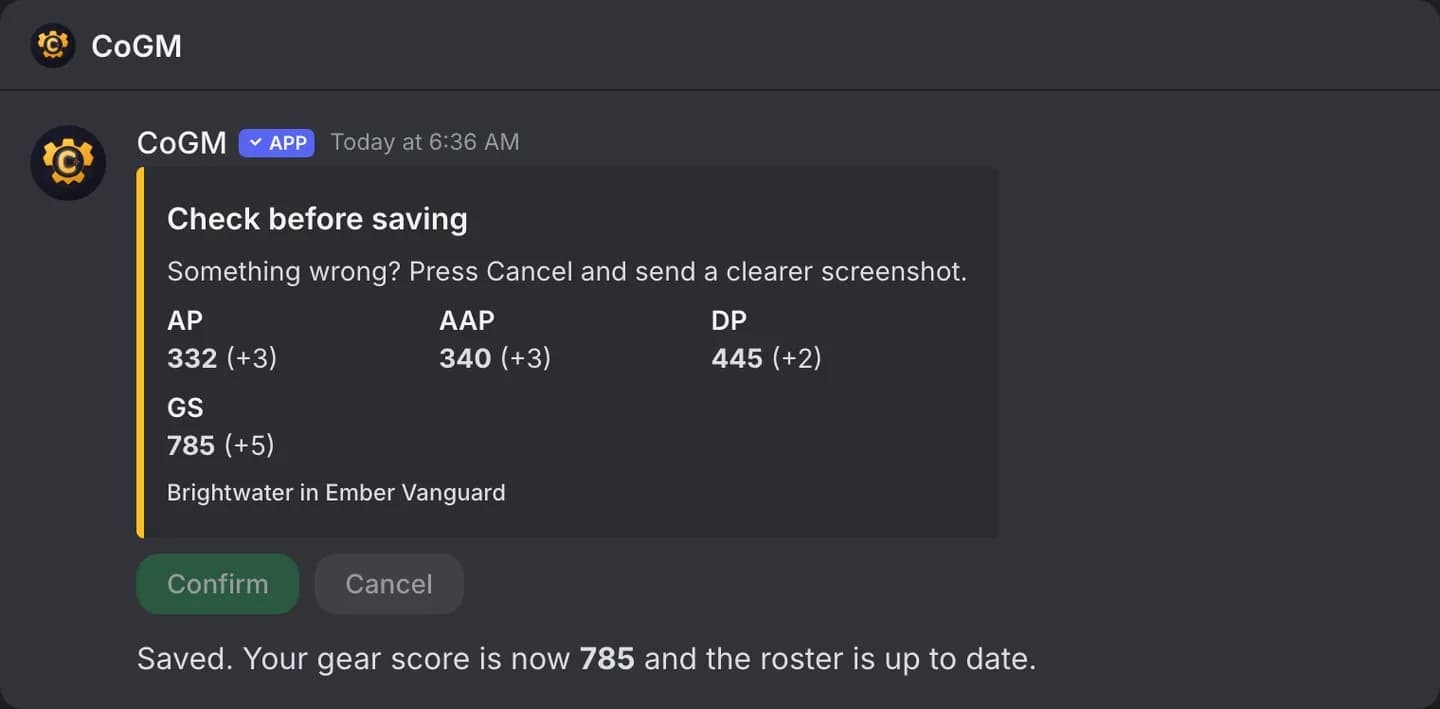
The bot replies with your character card and sends you a direct message with what it saved. If a number is wrong, upload a clearer screenshot or ask an officer to fix it.
To refresh later, use /update stats with a new screenshot of the same character. On a server that runs Black Desert Online it is called /update gear. It keeps your name and class. /update class changes the class. Full options are on the /upload and /update pages.
Black Desert Online uploads
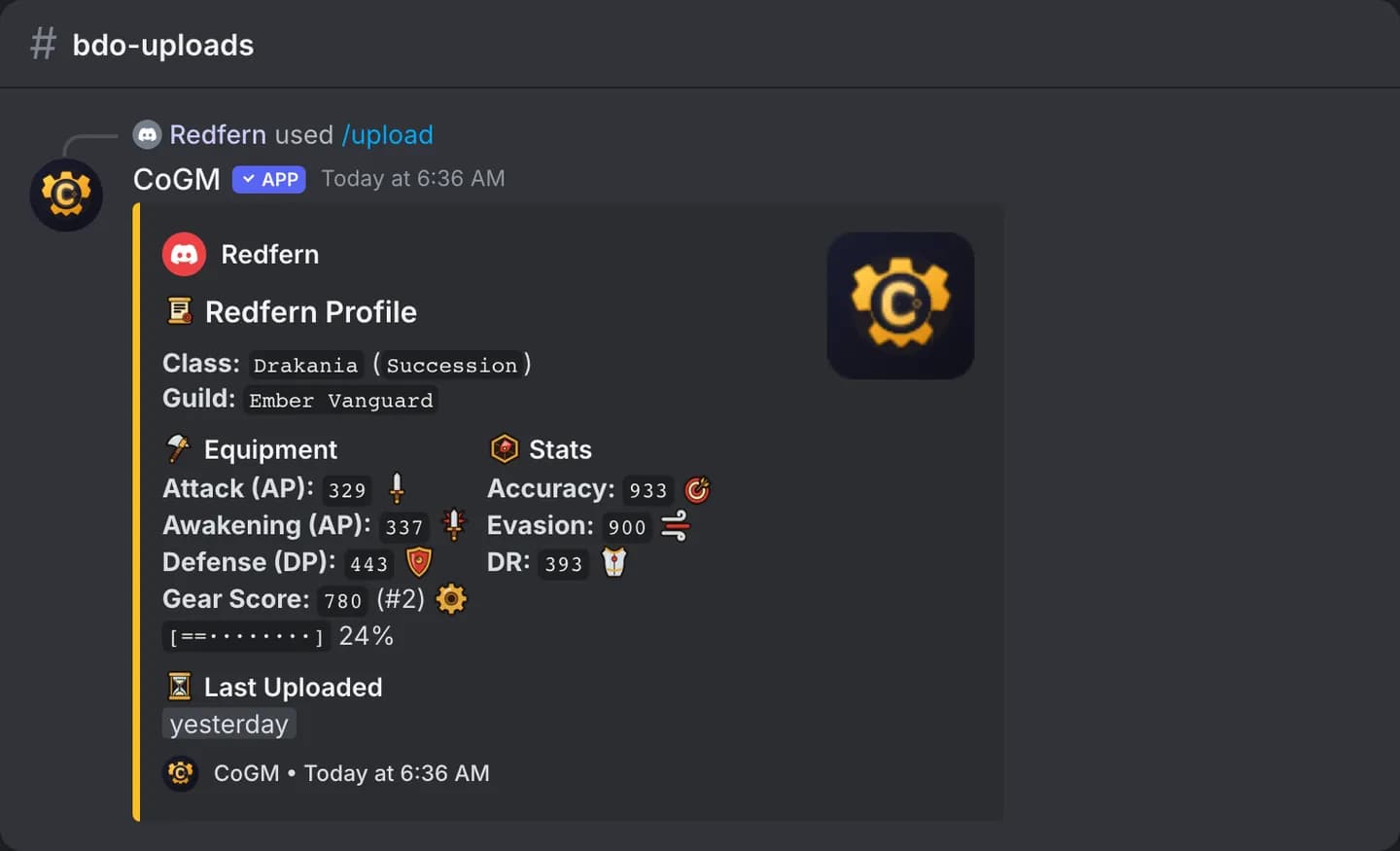
The bot reads AP, Awakening AP, DP, accuracy, evasion and damage reduction from the gear window. Gear score is your highest AP value plus DP. On your first upload you also give your family name, class and spec (Awakening or Succession; Shai has none).
Aion 2 uploads
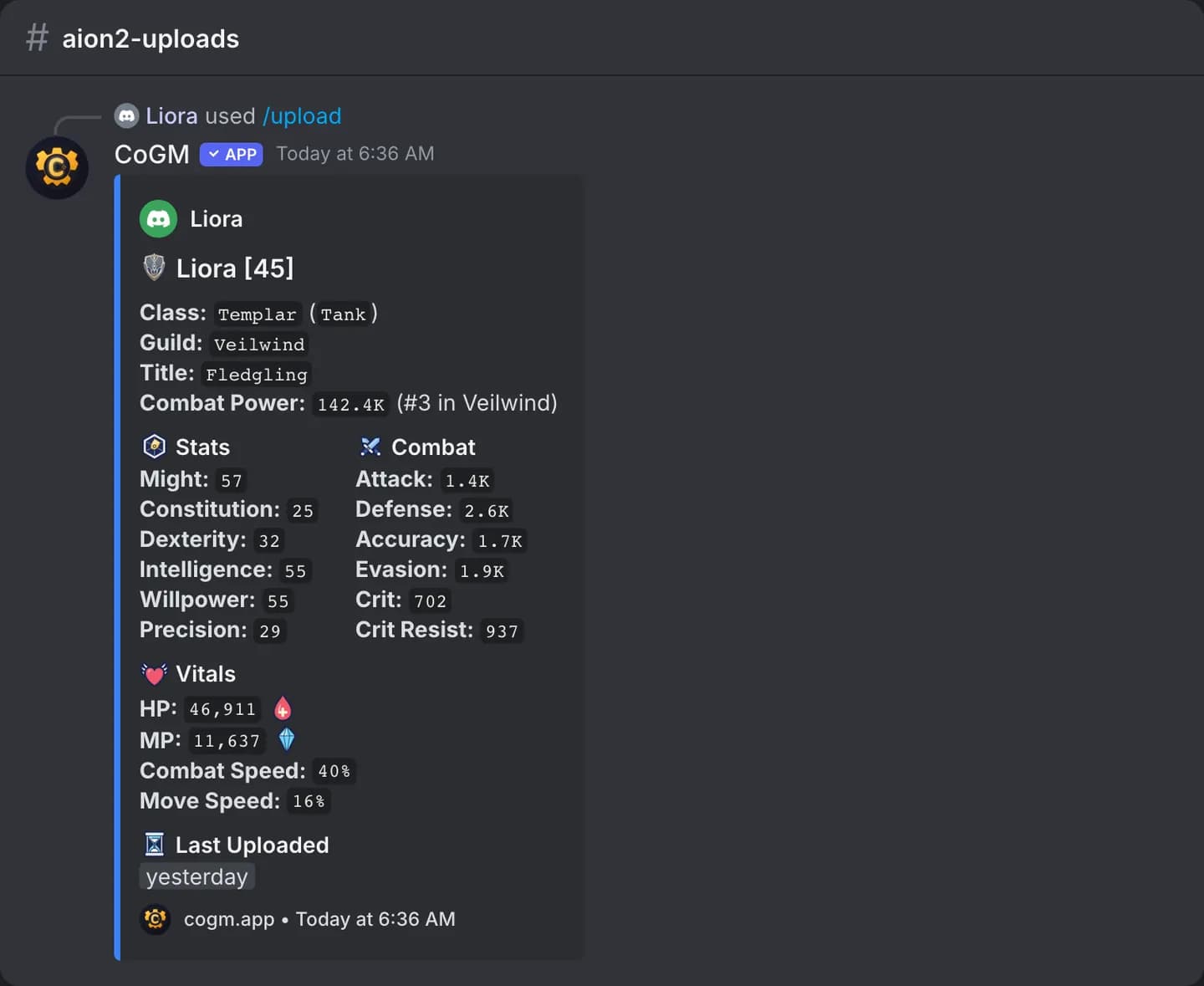
Upload the Stat Info screen switched to Item Level (the number under your level). It gives the character name, level, Item Level and the stats on that screen; the Combat Power view gives Combat Power instead. The screenshot does not show your class, so pick it in the class option, or the bot asks on your first upload. The card shows your Item Level rank in the legion; Combat Power is shown but never ranked.
WoW Forever uploads
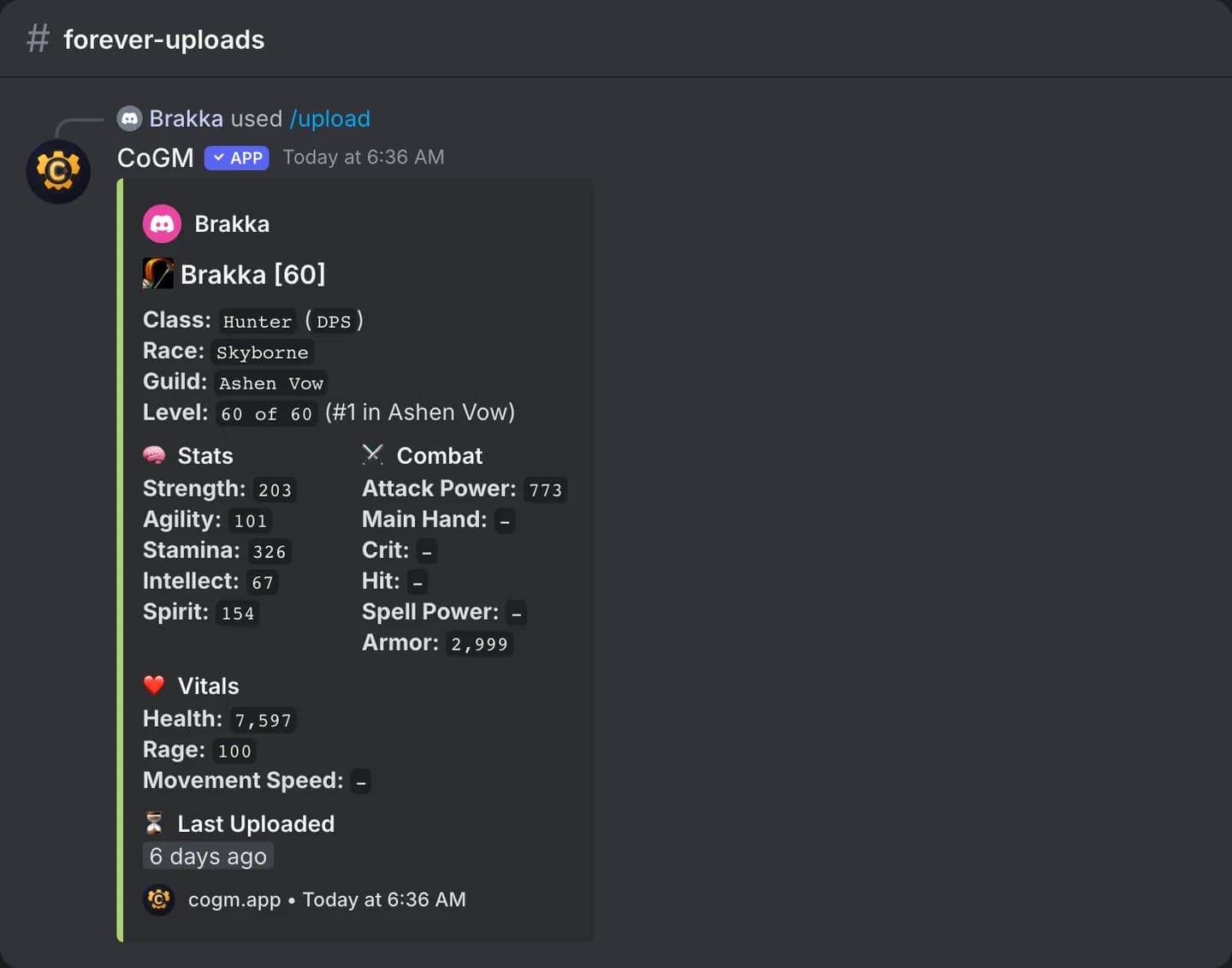
The character panel gives the name, level, class and the stats pane. If the stats pane scrolls, add the rest with the file2 and file3 options and the bot merges them into one upload.
Monsters & Memories uploads
The character window gives the name, level, race, class, faith, health, mana, armor class, stats and resists. There is no gear score in this game, so the roster and /members rank on level and the uploaded stats.
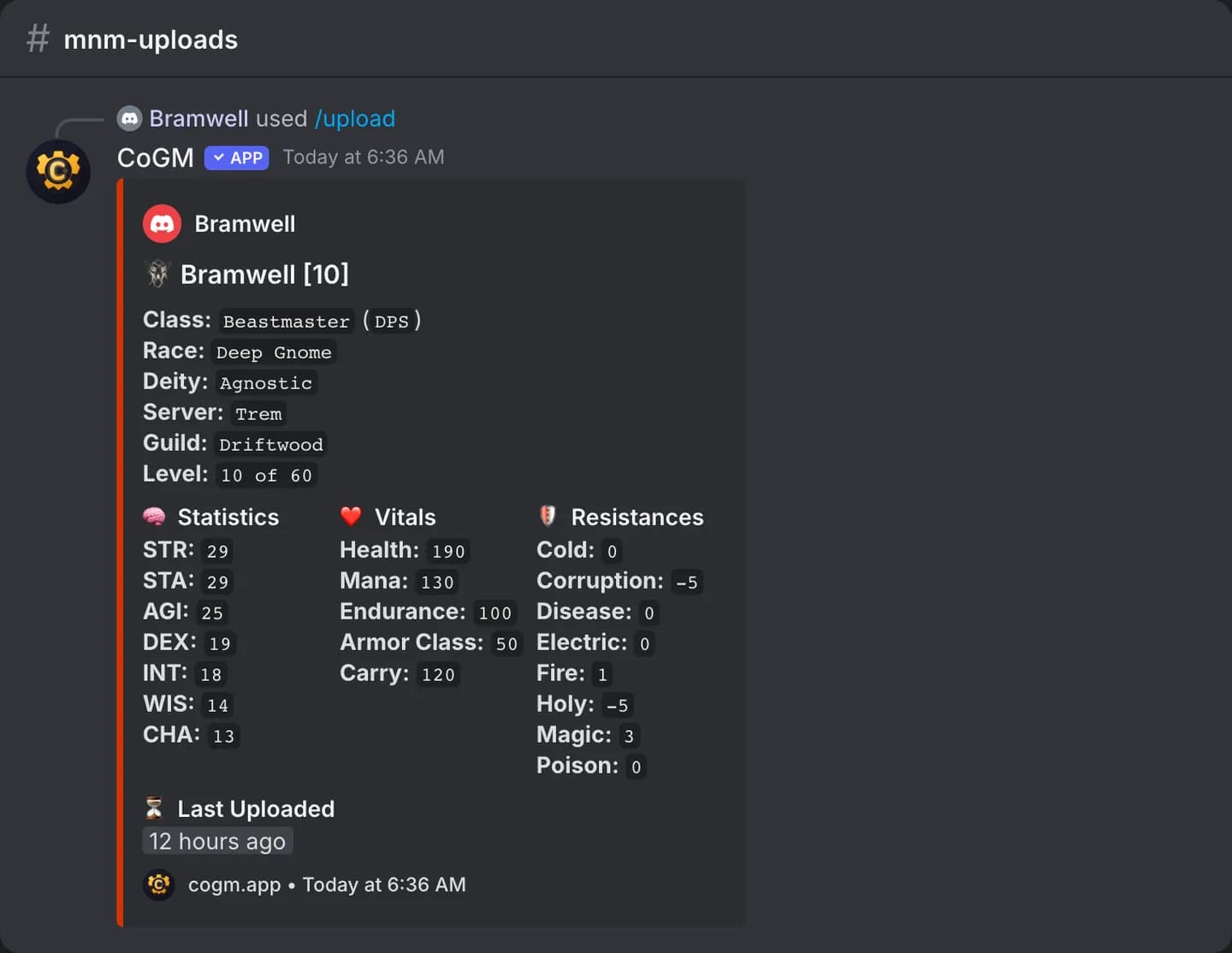
No screenshot? Type it in
On a server that runs Monsters & Memories, /upload or /update stats (/update gear on a server that also runs Black Desert Online) with no screenshot opens a private panel:
- If you are in more than one Monsters & Memories guild, pick the guild.
- Choose Main or Alt (or New alt).
- Press Screenshot to read it from your character window, or Type it in for name, race, class and level.
Later you can change the race, class or level one at a time from the same panel. A typed save doesn't use an upload. Your first character in a guild becomes your main.
The roster
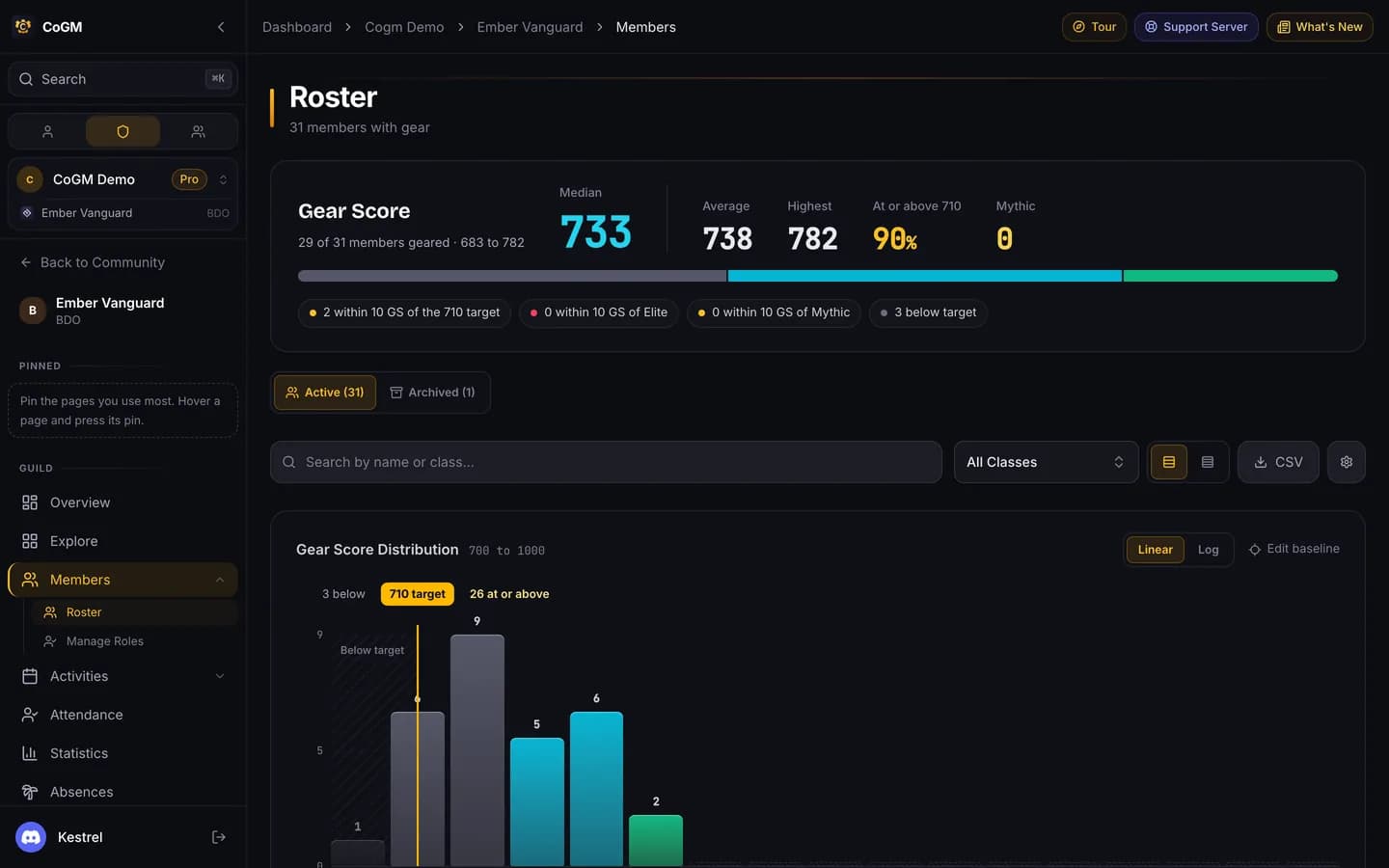
Every upload lands on Members → Roster. On Black Desert Online the page opens with a summary: median, average and highest gear score, how many members are at or above your target, and how many sit in your top tier. Below it, a gear score chart shows the spread against your target.
The table lists class, role, gear score, tier and an Updated column with how old each member's gear is. Old gear is tinted so you can spot it. With automatic reminders on, it turns amber once gear is older than the reminder days and red at twice that, at any gear score, and members who never uploaded show red. With them off, gear under 800 turns amber after 14 days and red after 30, 800 to 849 turns amber after 30 days and red after 60, and 850 and up is never tinted. Search by name or class, filter by class, sort any column, and download the roster as CSV. Open a row to see every stat next to the guild median.
Aion 2, WoW Forever and Monsters & Memories rosters show each member's class, role and latest upload. Each member's profile page keeps their character and history; on Black Desert Online it adds a gear progression chart.
Fix a Black Desert Online number by hand
Gear score tiers
Black Desert Online guilds sort gear scores into six tiers. The defaults are Below baseline (under 730), Approaching, Solid, Strong, Elite and Mythic (870 and up). Rename any tier and set where it starts in Settings → Game. The roster chart, table and summary all use your tiers.
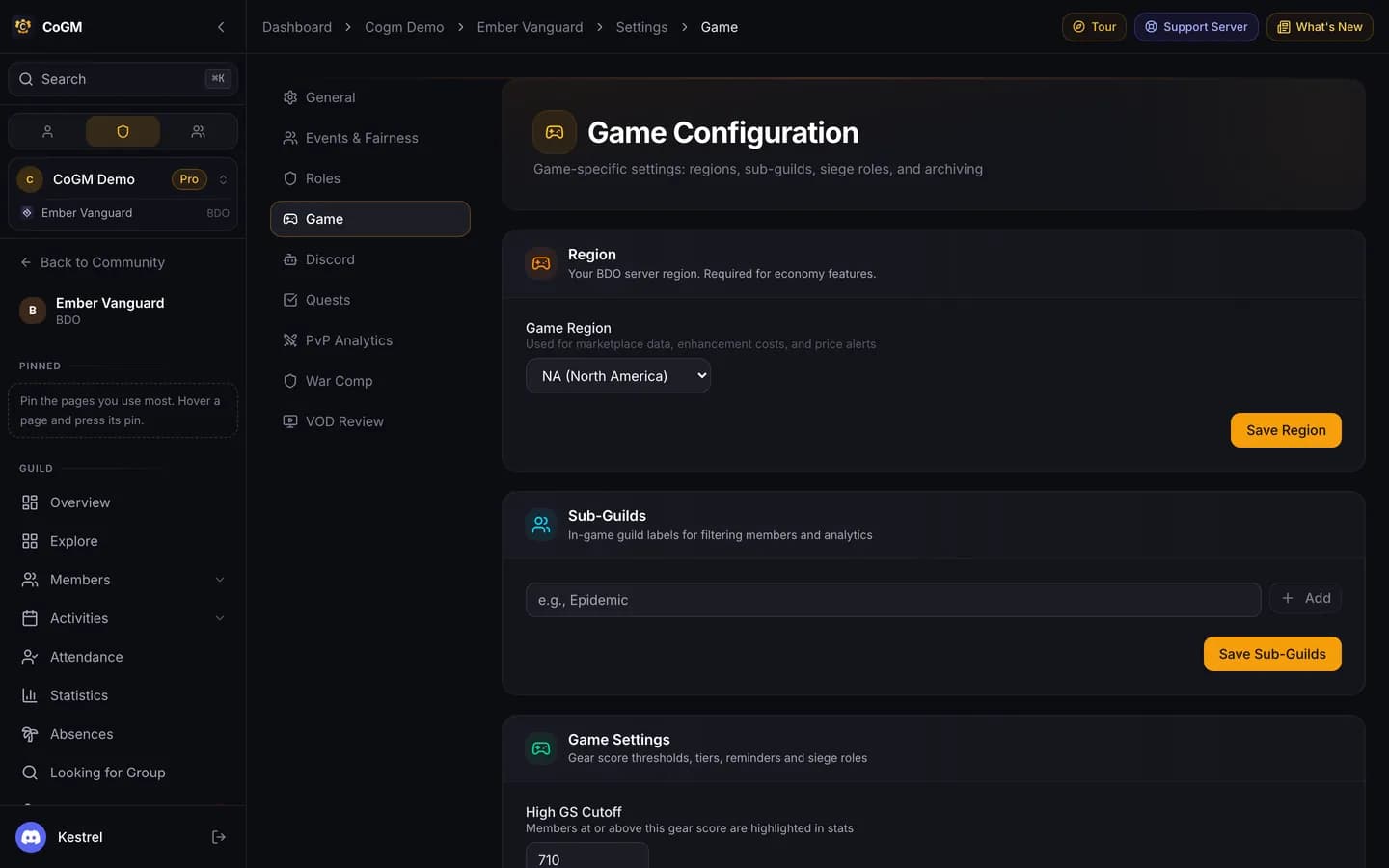
The same card holds the High GS Cutoff (the target line on the chart) and the chart's range. Officers with Manage Gear can change the tiers and automatic reminders even without access to the rest of the guild settings.
Remind members to update
Reminders are direct messages from the bot. There are three ways to send them:
- Remind on a roster row DMs one member (Black Desert Online roster, Manage Gear).
- Remind all on the Black Desert Online roster DMs every member whose gear is older than the number of days you pick, including members who never uploaded.
- /remind does the same from Discord in any of the four games. Officers only.
A run reaches up to 200 members; run it again to reach the rest. A single Remind is not sent twice within 10 minutes, and Remind all or /remind skips anyone reminded in the last 24 hours, and the roster shows how each reminder went (sent, DMs closed, already updated).
Automatic reminders (Black Desert Online, off by default): in Settings → Game, turn on Automatic reminders and set the days. The bot DMs a member when their gear is older than that, then again every that many days until they update. The roster's Updated column then follows the same days, and Remind all starts from them. With automatic reminders off, Remind all counts and DMs the members whose Updated cell is tinted, so its count always matches the tinted rows.
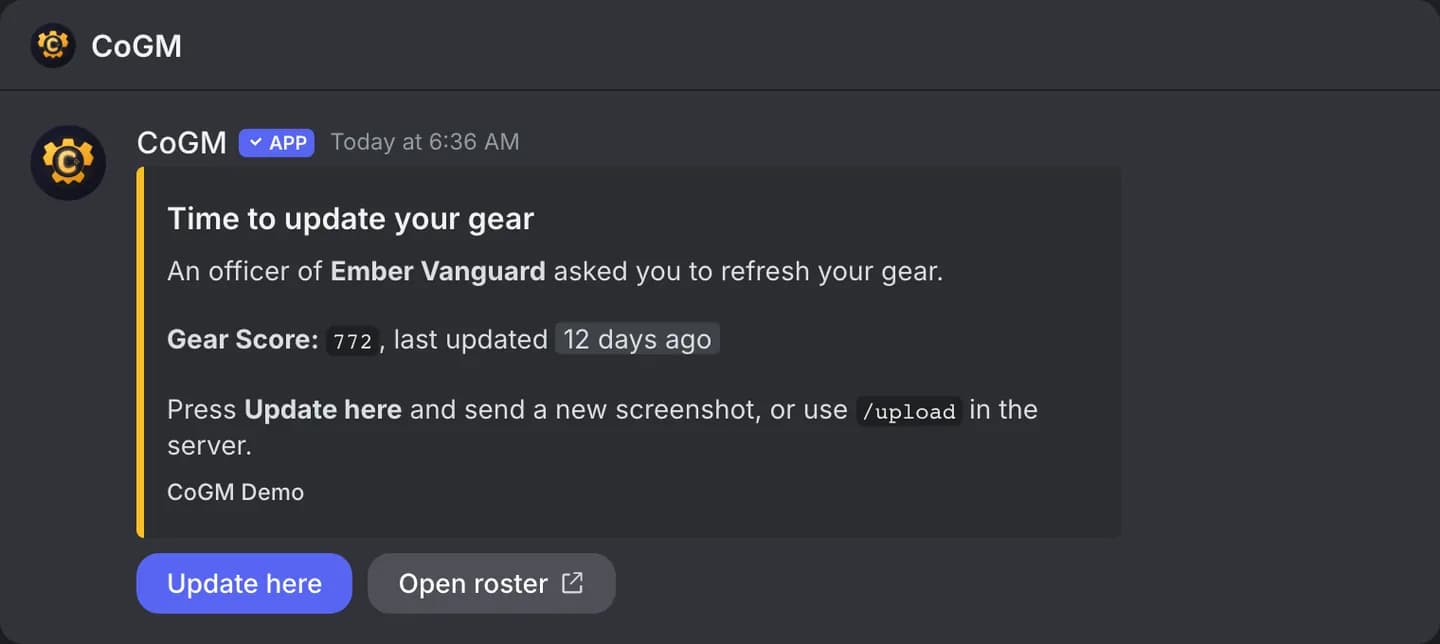
Update in the DM
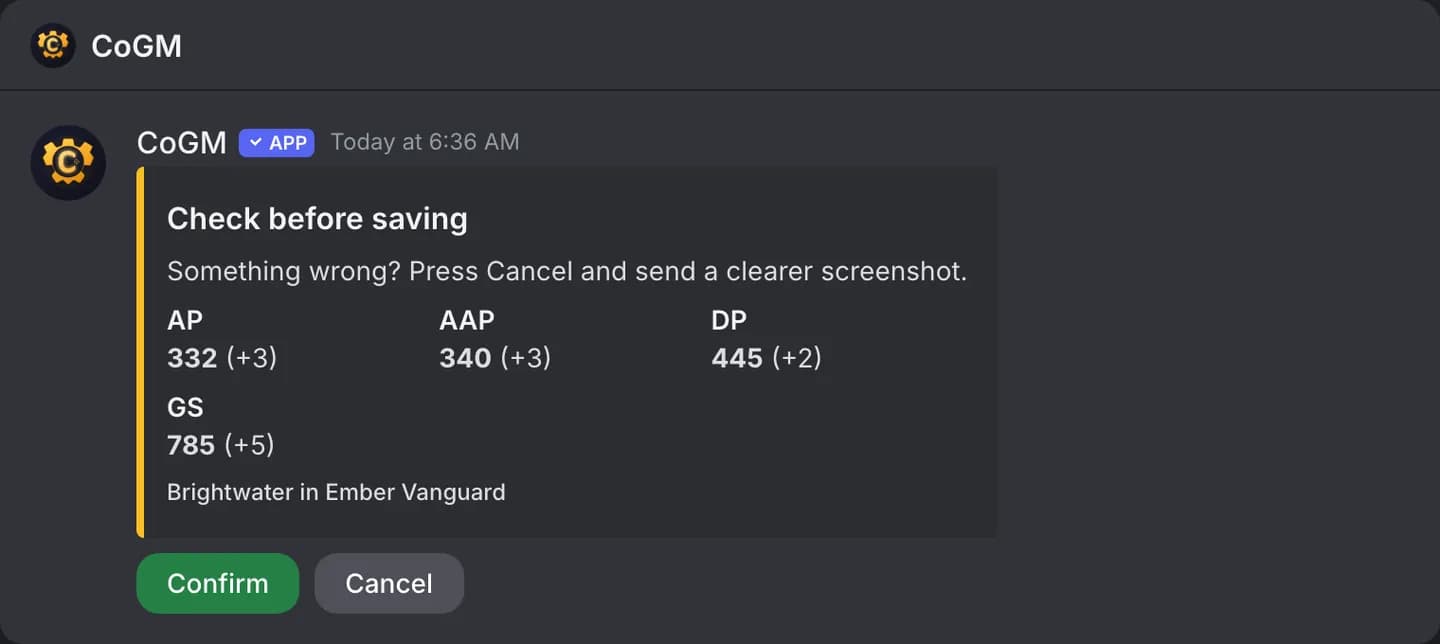
On Black Desert Online, a member with a character in the guild can press Update here in the reminder and send a new gear screenshot right in the DM. The bot shows what it read and saves only after they confirm. The check stays open for 10 minutes.
Related
- /gear and /profile show a member's card in Discord.
- /members lists the guild ranked by its headline stat.
- Statistics shows the class composition wheel.
- Missing Data lists Black Desert Online members with no class or no gear.