Applications
Build a form on the dashboard. Applicants answer it in Discord with /apply or on your public community page, and each application opens a review thread with Approve and Deny buttons.
Who can use it
- Every game. Free on every plan.
- Community roles: View Applications to read them, Manage Applications to review them and to build every form, community-wide or for any guild. Post Embed, Analytics, Blocklist and Settings also need Manage Applications. Admins have both.
- Guild roles: View Guild Applications and Manage Guild Applications cover one guild's applicants. Create Guild Application Forms lets a guild officer set up that guild's forms: they open Forms under Applications and see only their own guild's forms. They can create, edit, copy, switch on or off and pick the default and review channel for those forms. Community-wide forms and other guilds' forms stay hidden. The only role their forms can give out is their guild's member role; any other role to give needs a community admin. Their forms cannot remove the review role, a Discord role linked to community permissions, a guild officer role, another guild's member role, or a Discord role with staff powers such as Administrator, Manage Roles or Kick.
- In Discord, anyone with the role set under Ping this role in Applications, Settings can also approve and deny.
Set it up
Pick where applications post
Make a form
Go live
Tell people to apply
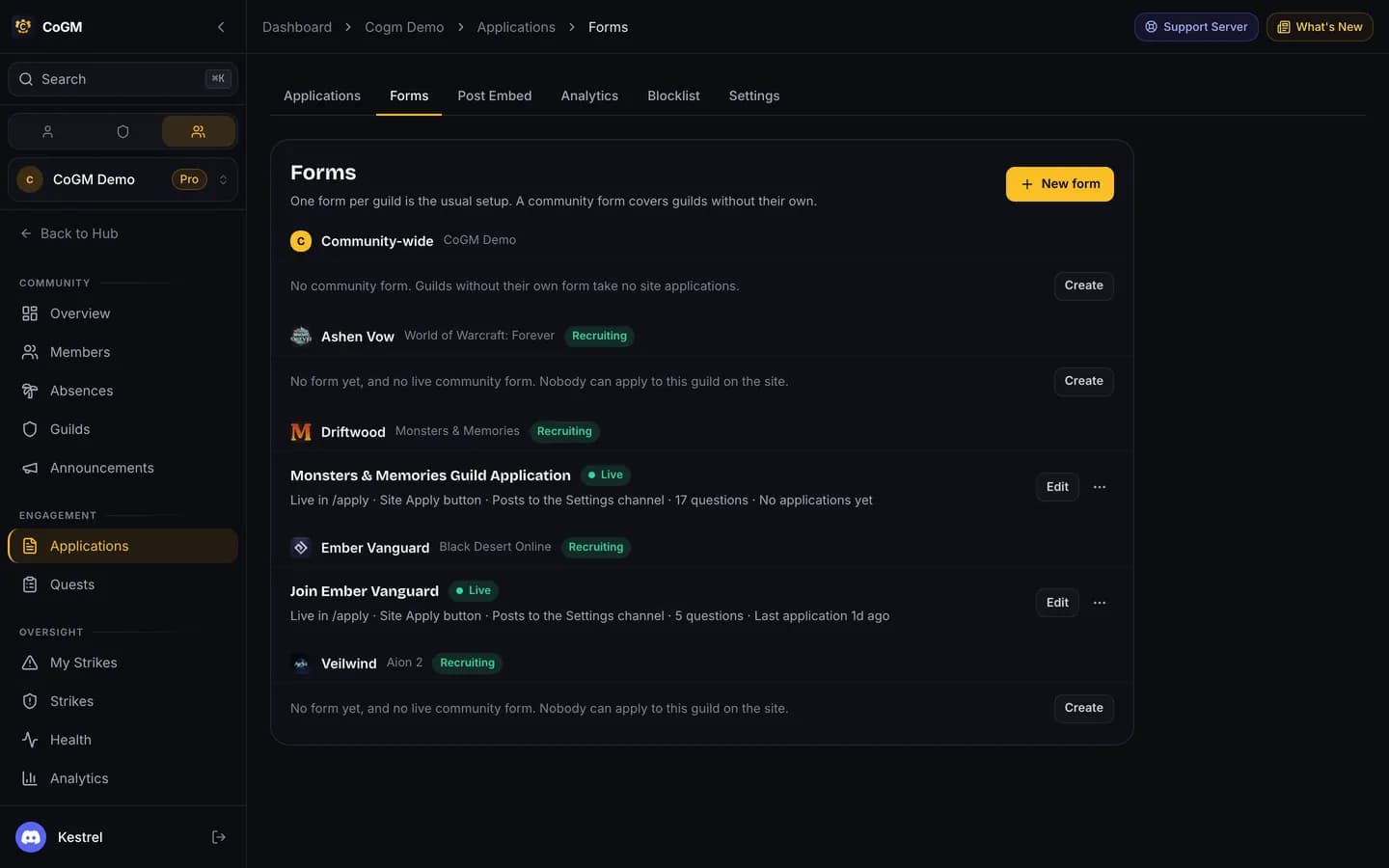
The forms list
Forms are grouped by guild, with a Community-wide group at the top. One form per guild is the usual setup. A community-wide form covers the guilds that have no form of their own. Each form shows whether it is live, where it is listed, which channel it posts to, how many questions it has and when someone last applied. Use Edit to open it, or the menu to turn it on or off, duplicate it or delete it. A form that already has applications can only be turned off, not deleted.
The form builder
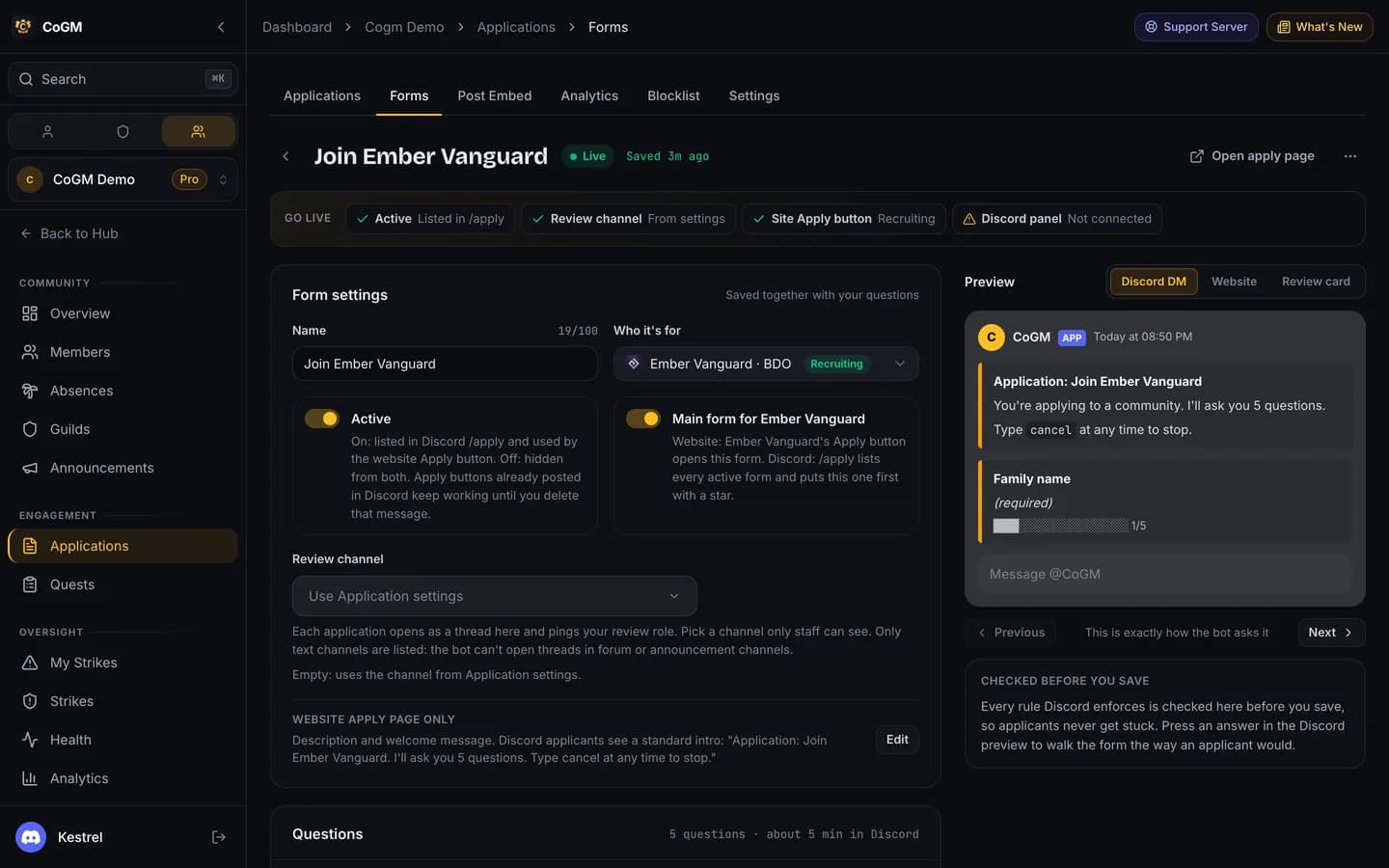
The builder is one page. Your changes save together when you press Save changes, and the header shows whether anything is unsaved.
- Go live: the checks a form needs before applicants can reach it. Active (listed in /apply), Review channel, Site Apply button (the form is the guild's main form and the guild is recruiting and not locked), Discord panel (an Apply panel is posted in your server), and for guild forms Character fields. Press a check to jump to what needs fixing. When all of them pass, the strip reads Live in Discord and on your site.
- Form settings: the name, Who it's for, the Active switch, the guild's main form, a review channel for this form only, and the description and welcome message for the website apply page.
- Questions: Short answer, Long answer, Number, Yes / No, Pick one, Pick several, Screenshot, and Message (a note between questions with no answer). Any question can be required, and a question can show only when an earlier Yes / No or Pick one answer has a set value.
- Who can apply: roles an applicant must have or can't have (any or all), a minimum Discord account age, a minimum time in your server, and a wait in hours after a denial.
- Actions & Automation: what happens on submit, on approve and on deny. Send a DM to the applicant, give or remove Discord roles, and rename the review thread. DM and thread templates take variables such as the applicant's name.
- Preview: the form as the applicant sees it, in a Discord DM, on the Website, or as the Review card your officers get. Press an answer in the Discord preview to walk the form the way an applicant would. Every rule Discord enforces is checked before you save, so applicants never get stuck.
A new Monsters & Memories guild starts with a ready-made form, unless your community already has an active community-wide form. Every game has its own template under Start from.
How someone applies
The applicant runs /apply. With more than one form, they pick a form first. The bot sends the questions in a DM, one at a time. Typing cancel in the DM stops the application; run /apply again to start over. If the applicant does not meet the form's requirements, the bot says why and nothing is filed.
If your community has Public Page turned on under Settings, then Discovery, people can also apply on the website. They press Apply to join on your public community page and fill in the same form there. A private community can still take website applications through a guild's own apply link, while that guild is recruiting and not locked. Press Open apply page in the form builder to get the link. They need a free CoGM account, and the button reads Sign in to apply until they sign in. The application goes to the same review thread and dashboard queue. Each person can have one pending application per community at a time, and they follow or withdraw it under My Applications.
Review in Discord
Each application opens a thread in the review channel, named after the applicant, with their answers and three buttons: Approve, Deny and Send DM. Approve and Deny ask for a message to the applicant and internal staff notes, which the applicant never sees. The form's accept or deny actions then run: the DM, the role changes and the thread rename. The review channel can also be a forum: each application then becomes a forum post, and the post's tag follows the decision.
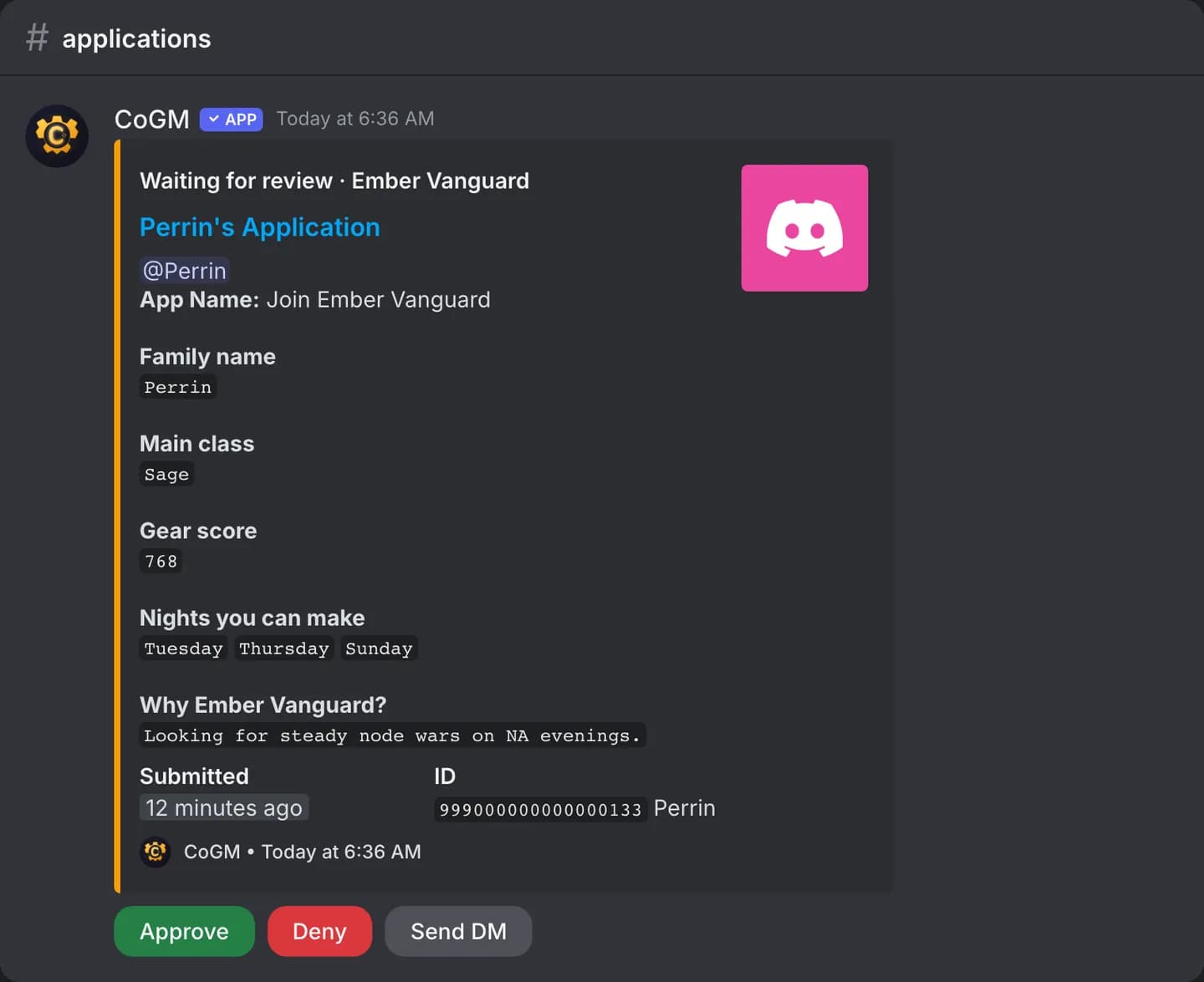
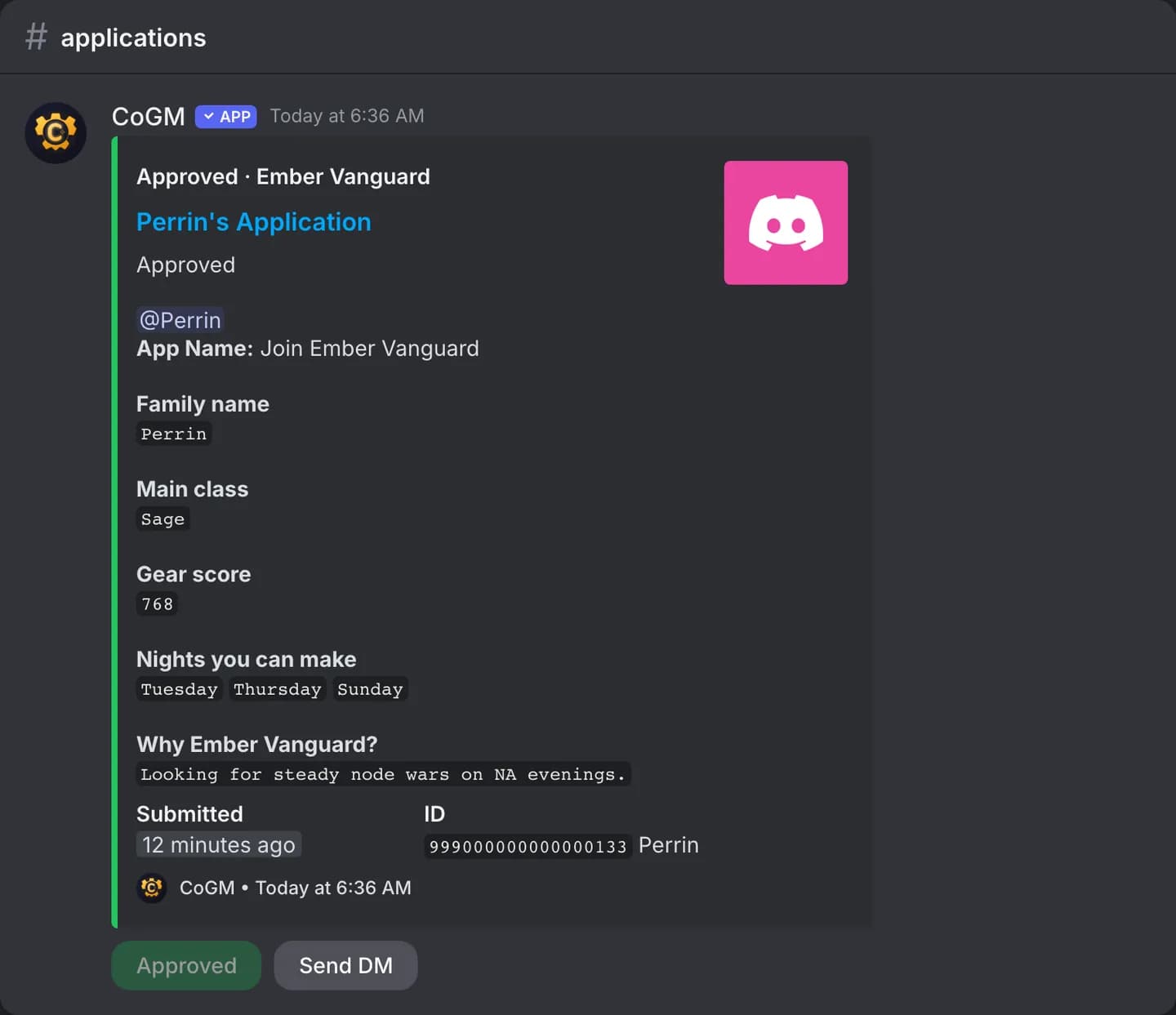
Approving an application for a guild form adds the applicant to that guild's roster and creates their character from the form's answers. The builder shows which questions fill which character field under Approving creates their character from, and you can add a missing one in one click. If no question fills a required field, approving refuses the character. Renaming a question that fills a field warns you that it will stop filling it, with an Undo. The applicant can answer a Send DM message with Reply to Staff, which posts in the thread.
An approved applicant with no community role yet gets every community role set to give new members. Approving is refused when the applicant is on the Blocklist: lift the ban there first. It is also refused when they left or were removed after sending the application: restore them from Members, or deny it and ask them to apply again. Internal staff notes are never posted to the action log, which shows the applicant, form and reviewer only.
Alt forms
Turn on Alt form for members adding an alt to a sister guild of the same game. The applicant picks their main, and approving adds the alt linked to it, with no member slot while the main counts. Monsters & Memories, WoW Forever and Aion 2 guilds can use it. See Alts for what happens after.
Review on the dashboard
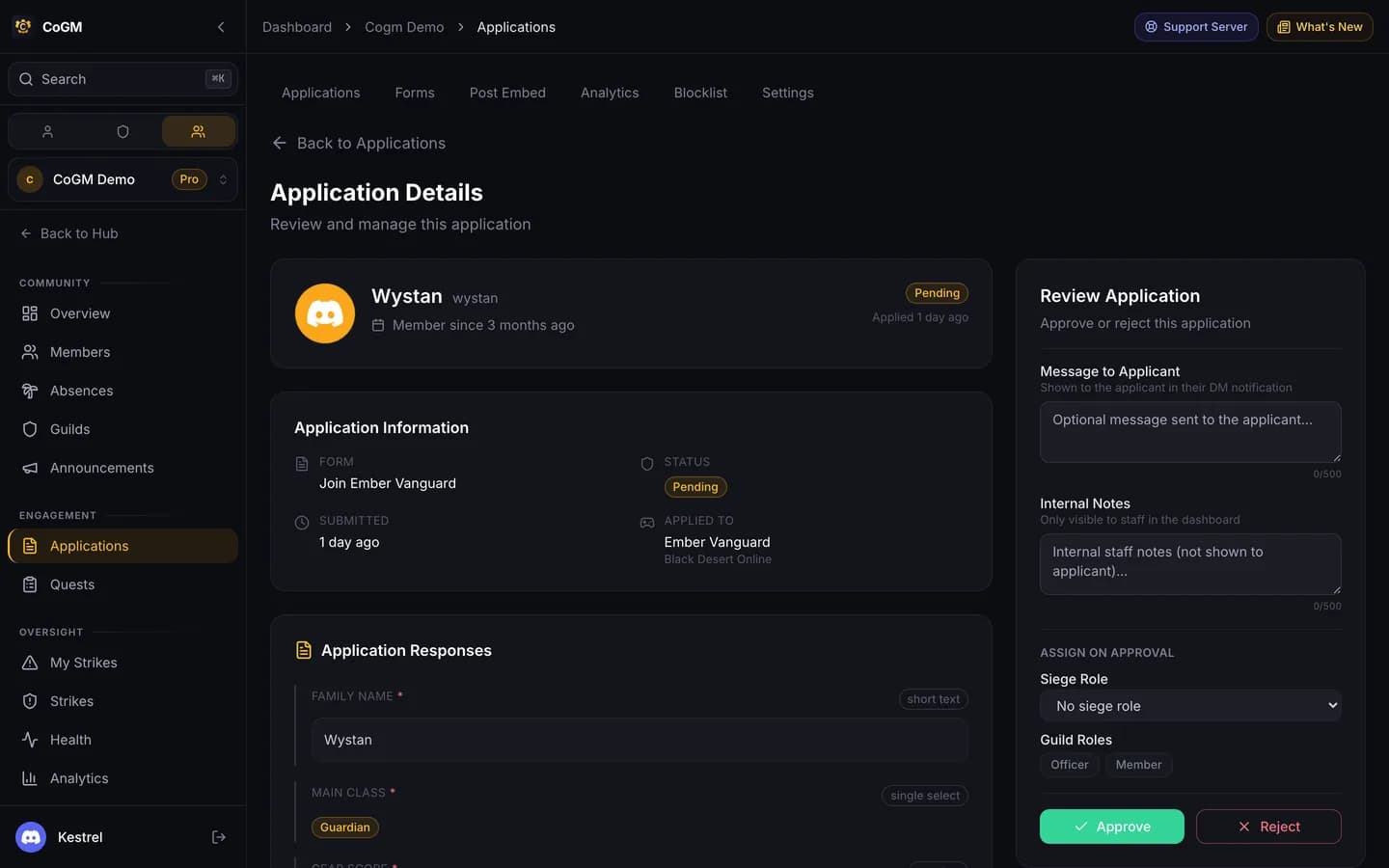
The Applications page lists every application by status: pending, approved, rejected and withdrawn. Open one to read the answers and decide. Each guild's Recruitment page shows the same for that guild only. Applicants follow theirs under My Applications.
Blocklist and analytics
- Blocklist (under Applications) lists people who cannot apply. Remove someone to let them apply again.
- Analytics shows total applications, acceptance and rejection rates, the average time from submission to decision, a breakdown by form and by status.
Nothing shows up in the review channel?