Upload a war log
CoGM Logger is the way to get kill positions and the kill map. A file you upload by hand still fills kills and deaths. PvP analytics is free.
With CoGM Logger
Set it up once
An officer makes the guild's upload token, either in the setup page's CoGM Logger row or with the Logger button on PvP Events > Event Log. Install the Logger and paste the token in. Full steps: CoGM Logger.
Run it during the war
Start the Logger before the war begins and leave it running until it ends.
Stop and upload
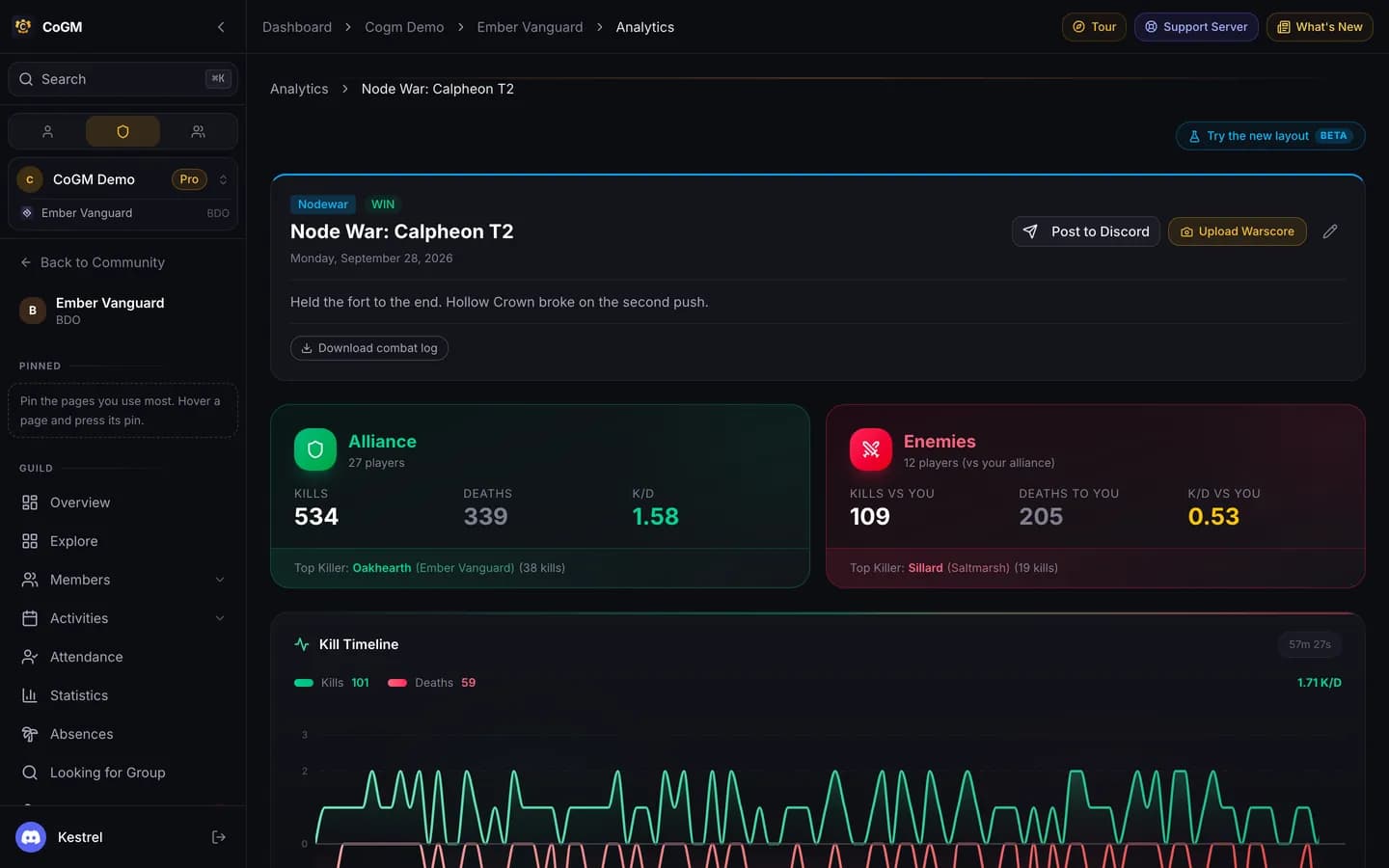
When the war ends, click Stop and save in the Logger. After the war score step, Upload asks which war this is: pick it, or New war, and upload. The war appears in PvP Events > Event Log with its recap, kill map and leaderboard.
Without the Logger
On PvP Events > Event Log, use the upload button with one of these:
- A .log file, for the full kill timeline.
- A CSV export, for kills, deaths and performance.
- Warscore screenshots, which CoGM reads for the results.
None of these include positions, so the kill map stays empty unless the log came from the Logger.
What you get
- Recap: kills, deaths and each member's results for the war.
- Kill map: where each kill happened, from Logger uploads.
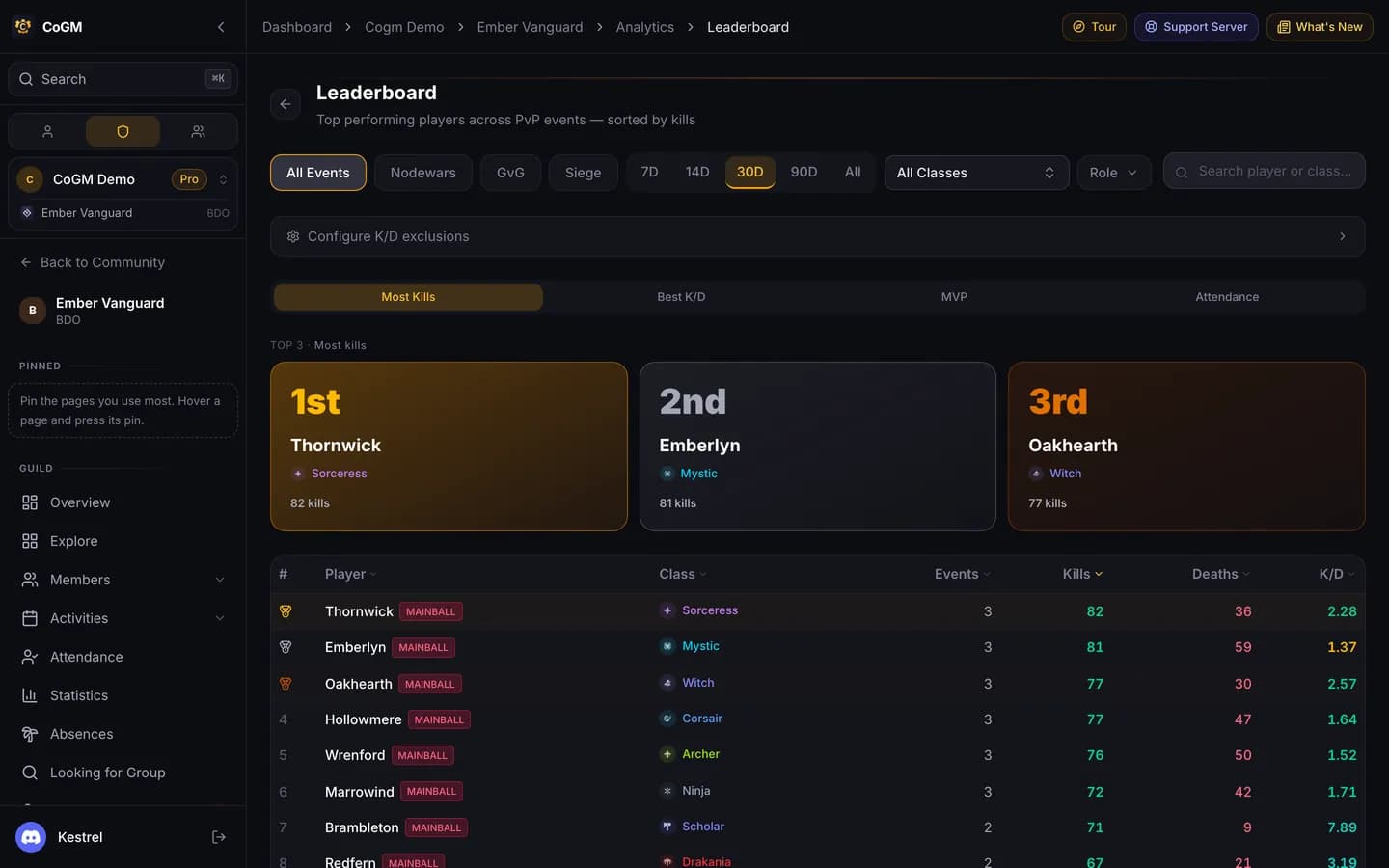
- Leaderboard: the guild's results across recent wars.
More: PvP Analytics.