Community Health
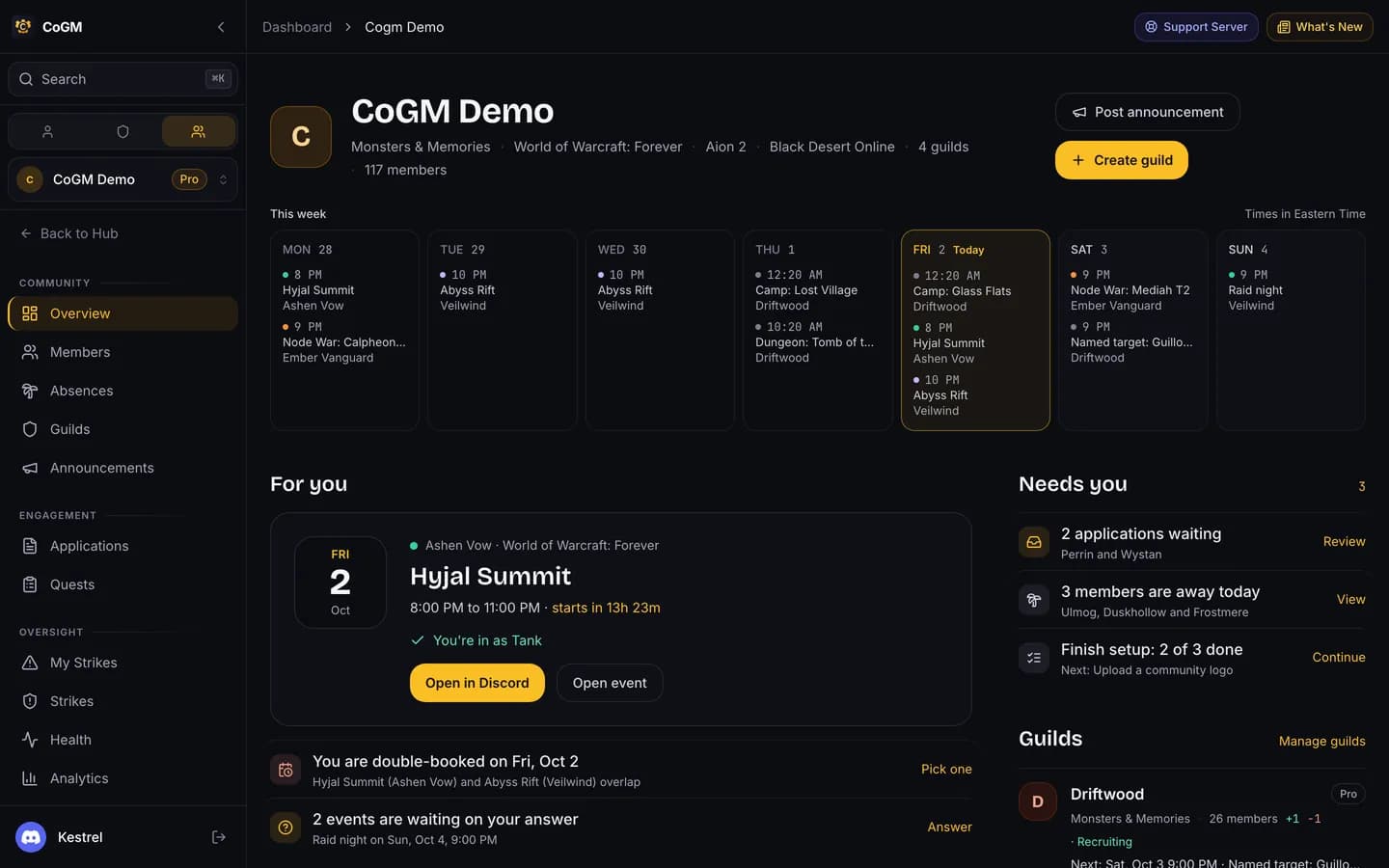
See how the whole community is doing: every guild on one page, activity in your Discord server, setup problems, and how you look to players who are searching.
Who can use it
- Every game. Free on every plan.
- Every member sees the community overview. Members see events for the guilds they belong to.
- Analytics needs View Analytics, which every member has by default.
- The Health page is for the community owner.
- Manage Discovery Profile lets someone edit the public listing.
Community overview
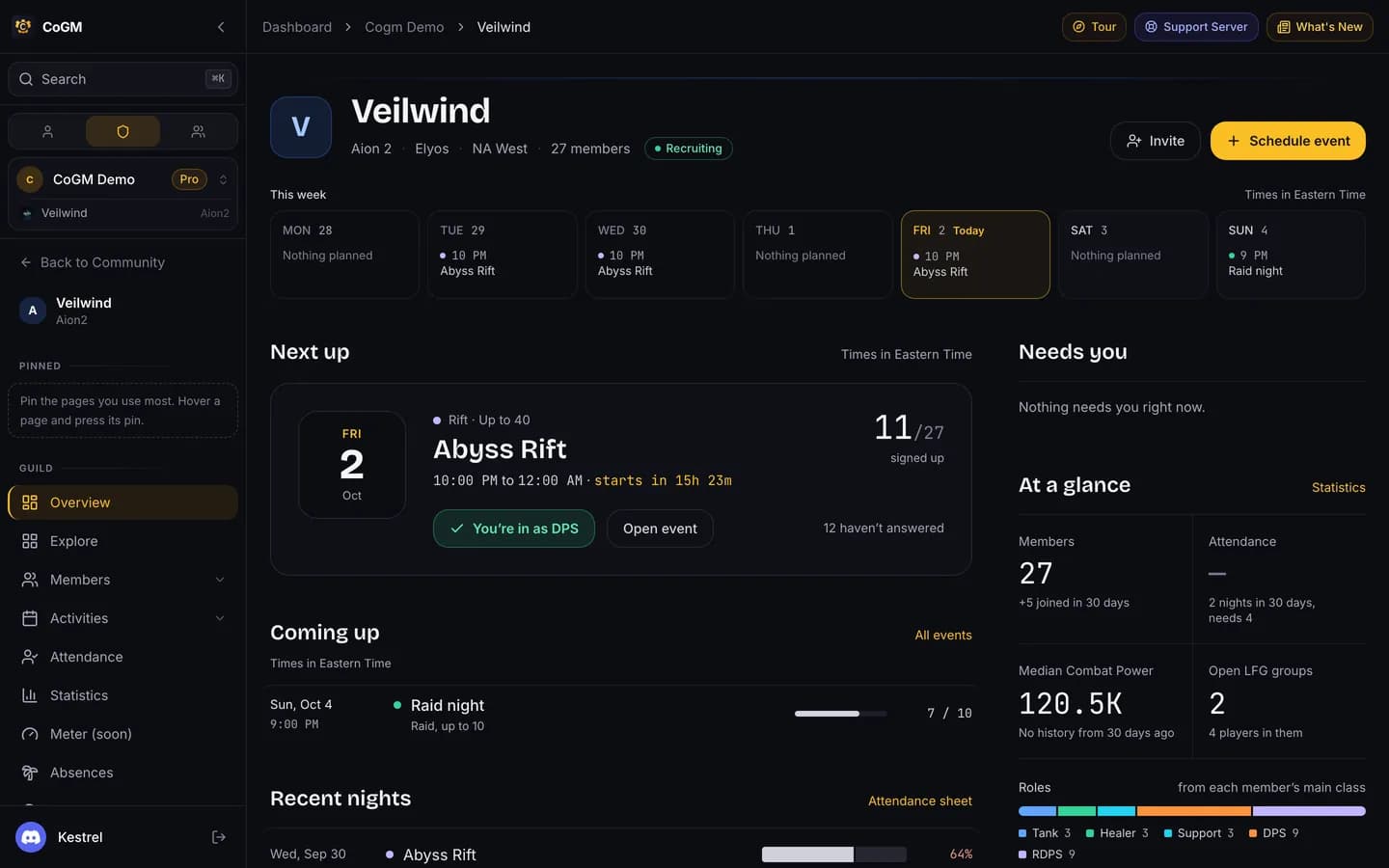
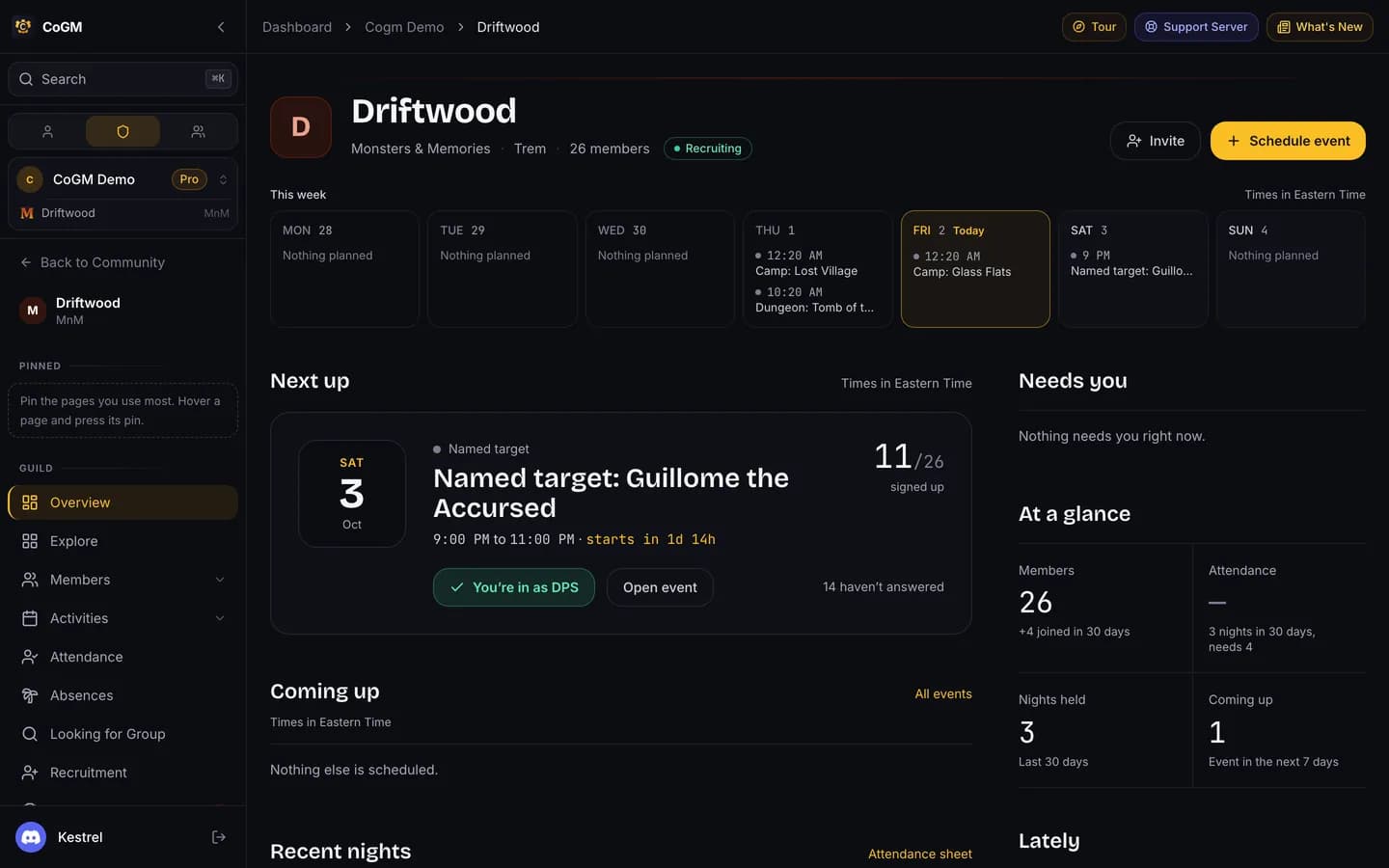
Overview, at the top of the community sidebar, is the home page. It shows every guild in the community, upcoming events and recent activity. Each guild has its own overview too, with its members, events and latest uploads.
Analytics
Analytics in the community sidebar has four tabs: Overview, Messages, Voice and Members. It shows active members, messages, voice joins and voice minutes over 30 days, and the members who earned the most XP.
Turn on leveling first
Health
Health in the community sidebar shows totals for guilds and members, members active this week and this month, and which guilds are active, idle or have no events. Above that it flags setup problems, such as the bot no longer being in your Discord server, or a billing issue, with a link to fix each one.
Your public listing
Players find communities on the public Discover page. Your community shows there with a public profile once you turn it on.
Open Discovery settings
Fill in the profile
Recruit
Let people in
People blocked from applying cannot use instant join either. To recruit with a form, see Applications.