Free
Absences
Members tell you when they will be away. While their leave covers a date, event pings and reminders skip them and their events count as excused.
Who can use it
- Every game. Free on every plan.
- Any member can file and cancel their own leave.
- View Absences shows who is away and when. Every member has it by default. View Leave Reasons shows why. Manage Absences approves, ends and changes leave, and sets up the request panel.
- In a guild, Manage Leave lets an officer act on leave for that guild's members.
Set it up
1
Open the settings
Open Absences in the community sidebar. Officers with Manage Absences see the leave settings at the top. A Discord server has to be linked first.
2
Pick how leave starts
Self-serve: leave starts the moment a member submits it. Officer approved: requests wait for an officer with Manage Absences. Officer approved needs an absence channel, where each request posts with Approve and Deny buttons. You can pick a staff role to ping on new requests.
3
Post the panel
Pick the channel and press Post Request Panel. Members press Request Leave on it and fill in their dates. You can change the panel's title, text, color and images, with a live preview.
File leave
- In Discord:
/absence requestwith a start date and an optional end date (YYYY-MM-DD). Leave the end blank for open-ended leave. The reason is optional and only officers see it. - In Discord: press Request Leave on the panel.
- On the dashboard: open Absences in your guild's sidebar and request leave there.
- To come back early, run
/absence cancel.
What officers see
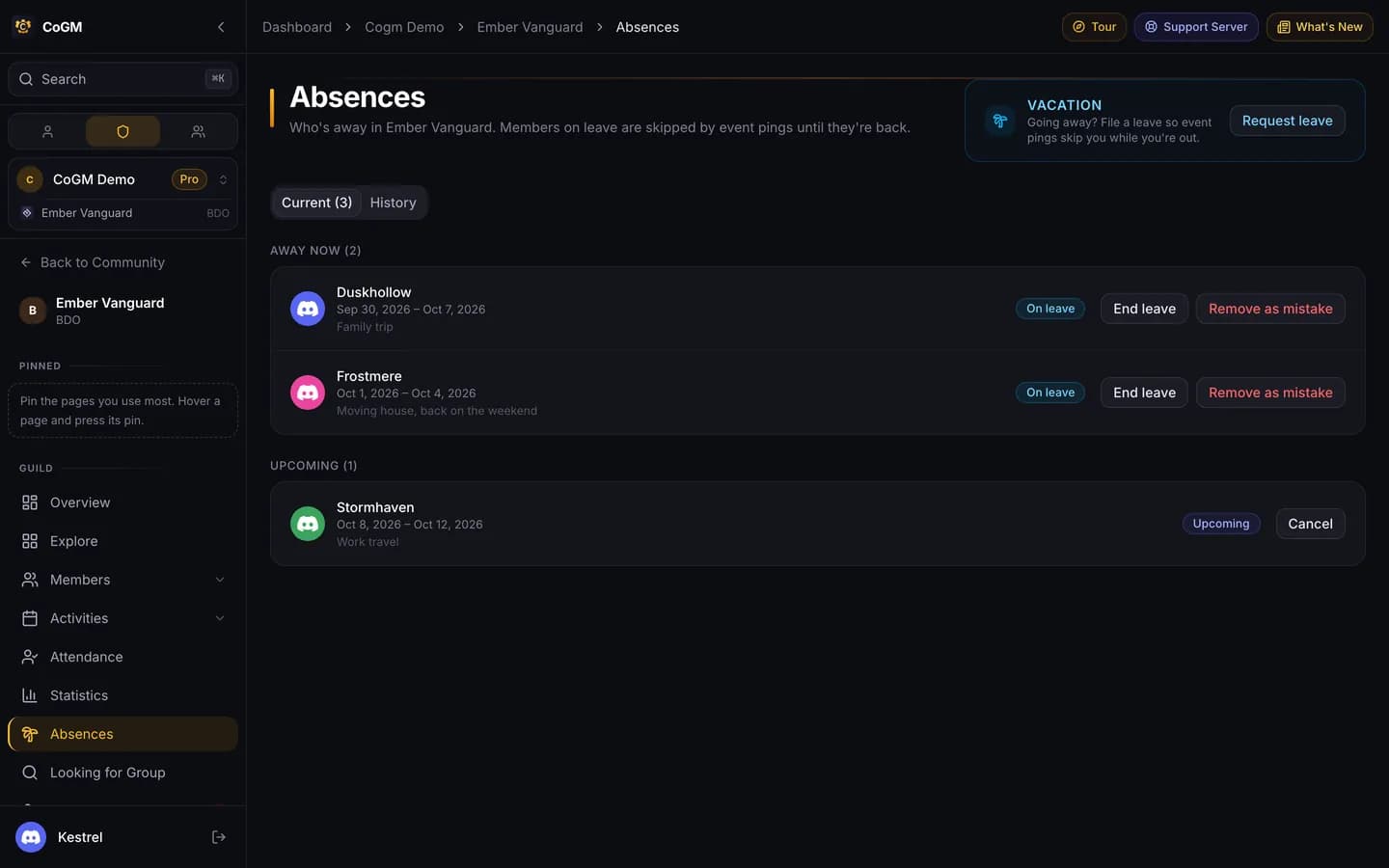
The community Absences page groups leave into Pending review, Away now and Upcoming, with past leave kept as a record. Approve or deny a pending request, cancel an upcoming one, or end a leave early from here.
How leave affects attendance
Approved leave counts as excused, so it never lowers a member's rate. A leave filed for one guild only excuses that guild's events. See Attendance.
Command reference: /absence.